
Artist Review: Asus ProArt PZ14 tablet with ASUS Pen 3
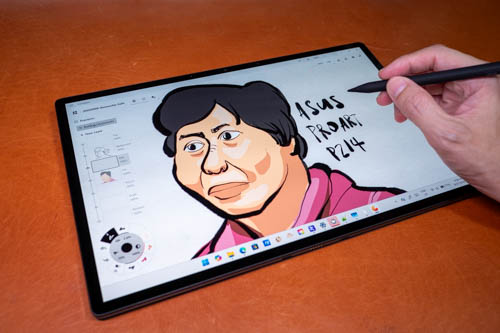
Review unit on loan from ASUS Singapore
The ASUS ProArt PZ14 is a powerful Windows tablet with a 14-inch OLED display with pen support that was announced in January 2026. The tablet was released in Singapore in June 2026 and comes with 32GB RAM, 1TB storage, priced at SGD 4499.
ASUS also released the Asus Pen 3 at the same time. The pen uses Microsoft Pen Protocol (MPP) 2.6, supports tilt, 4K levels of pressure and palm rejection. There's also haptic feedback and magnetic charging.
My review is from the perspective of someone who does graphic design, sketch, edit photos and videos.
Specifications
| Category | ASUS ProArt PZ14 (2026) | Microsoft Surface Pro 13 (2026) |
|---|---|---|
| Release Date | Jan 7, 2026 (CES) | Jun 2026 |
| Display | 14" OLED, 2880×1800, 144 Hz, True Black 1000, 16:10 | 13" OLED/IPS, 2880×1920, 120 Hz, HDR, 3:2 |
| Color Accuracy | 100% DCI-P3 | 100% DCI-P3 |
| CPU Options | Snapdragon X2 Elite | Snapdragon X2 Plus / X2 Elite / Intel Core Ultra 5 / Ultra 7 |
| GPU | Qualcomm Adreno | Qualcomm Adreno |
| RAM | 16 GB / 32 GB LPDDR5X | 16 GB / 24 GB / 32 GB / 64 GB LPDDR5X |
| Storage | 512 GB / 1 TB SSD | 512 GB / 1 TB SSD |
| Battery | 75 Wh (OLED) | 47 Wh (LCD) / 53 Wh (OLED) |
| Physical Dimensions | 312.1 × 221.6 × 9mm | 287 × 208 × 9.3 mm |
| Weight | 0.79 kg | ~0.895 kg |
| Ports | 2× USB-C (USB 4), SD Express 7.0 | 2× USB-C (USB 4 |
| Wireless | Wi-Fi 7, Bluetooth 6.0 | Wi-Fi 7, Bluetooth 5.x |
| Front Camera | 8 MP + IR | 5 MP |
| Rear Camera | 13 MP | None |
| Pen Protocol | Microsoft Pen Protocol (MPP) | Microsoft Pen Protocol (MPP) |
| Supported Pen | ASUS Pen 3 | Surface Slim Pen 2 |
| Pen Features | 4096 pressure levels, tilt, USB-C charging | 4096 pressure levels, tilt, haptic feedback, magnetic charging |
| Pen Storage | No built-in silo | Magnetic slot on keyboard |
| Best For | Creative work, color-critical tasks | Productivity, note-taking, flexible configurations |
The 13-inch Microsoft Surface Pro (2026) with the same specifications costs SGD 3699. The Microsoft Slim Pen 2 and keyboard case are SGD 439. So the total with accessories is SGD 4138. One year warranty is included while ASUS includes a 2-year warranty.
The ASUS ProArt PZ14 has a larger display, larger battery capacity and is lighter and thinner. Impressive.
Things included
Items may vary depending on location.
- Tablet
- Keyboard case
- ASUS Pen 3
- 68W Power adapter and cable
- Sleeve
- Warranty and quickstart guide
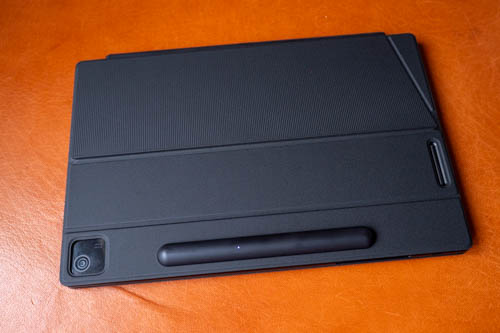
The included keyboard case comes in two parts.
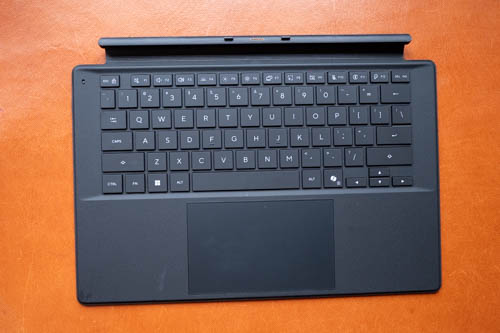
The detachable keyboard attaches to the bottom of the tablet with magnets. Keyboard is full-sized and typing experience is good with decent travel and feedback. Keys have backlight. The touchpad is big and accurate.
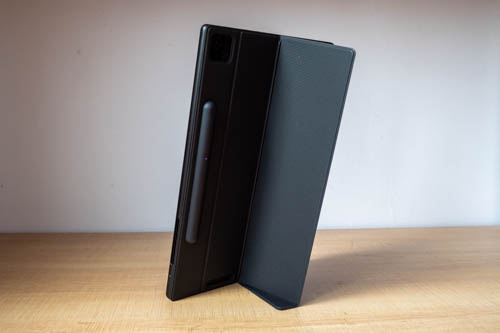
The back cover attaches to the back of the tablet and can stand vertically. The back cover has a storage area for the ASUS Pen 3 and there's a status light which will appear to show the charging status of the pen.
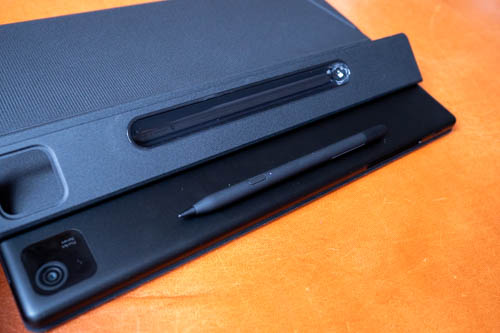
The pen would attach magnetically behind the tablet for charging and pairing. I do not know the battery life of the pen. Since the pen is always attached, battery will always be full the next time you use it.
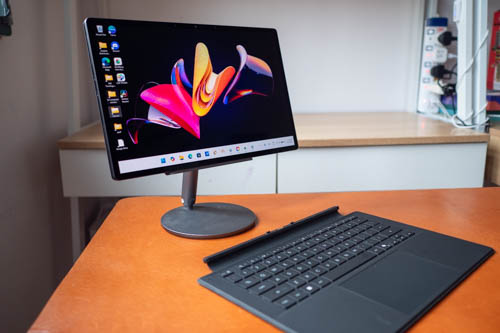
Nice thing about the keyboard is it can be used wirelessly away from the tablet. I have no info about the keyboard's battery life but there should not be an issue when it's connected to the tablet frequently.
Design
 '
'
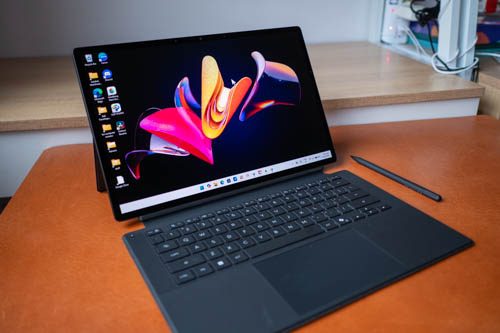
This tablet is well made and build quality feels premium. Design of the tablet looks beautiful and sleek.
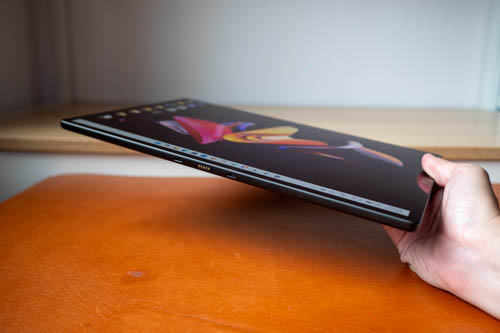
9mm can be considered thin for a Windows tablet. Edges are beveled and there's a slight tilt on the sides to make it easier to lift the tablet. Built quality is solid. This looks and feels like a premium product.
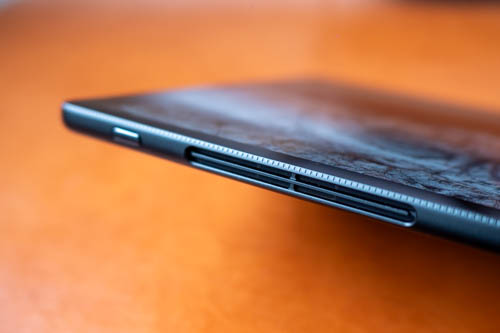
Fan exhaust is located at the top right, just beside the power button which does not have a fingerprint scanner. Fan noise is not audible with normal workload unless you're exporting videos or playing games.
The tablet doesn't get hot with normal workload, and fan noise would not be audible.
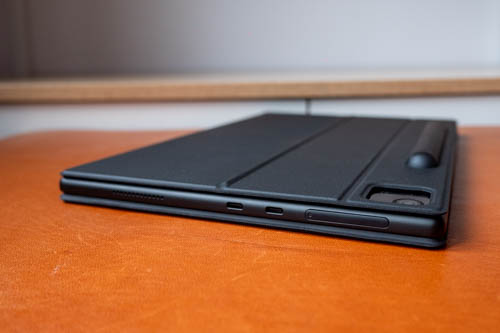
The tablet has two USB-C 4.0 ports on the left and a SD card reader that's covered by a removeable cover. Both USB-C ports support video output and charging.
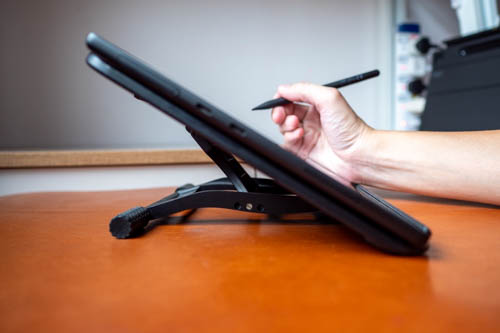
The tablet is 14-inch and weighs 790g. It's a big tablet and not something I can hold in hand for long periods of time. For drawing, I would remove the tablet from the back cover and place it on my Parblo PR100 stand.
Display
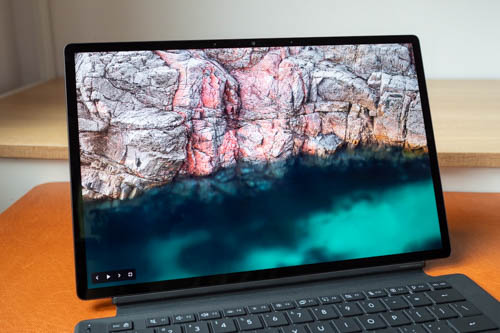
The 14-inch 144Hz OLED display looks stunning. This display is bright, vibrant and sharp.
There's Windows Hello face unlock but it doesn't seem work perfectly as failure rate for me seems high. Auto brightness works but I wish there's a way to adjust how much brighter or less bright with auto brightness.
Resolution is 2880 x 1800, aspect ratio is 16:10.
Standard brightness is 500 nits and HDR brightness up to 1000 nits. Colours support is 100% DCI-P3. Contrast ratio is 1,000,000:1.
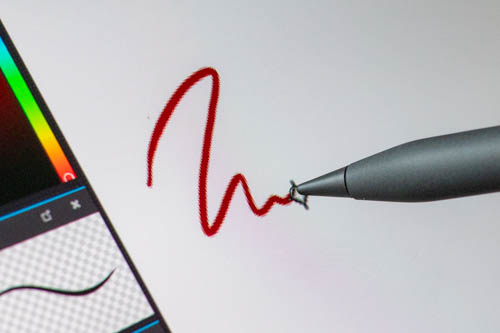
Display is laminated so there's almost no gap between the line and pen tip.
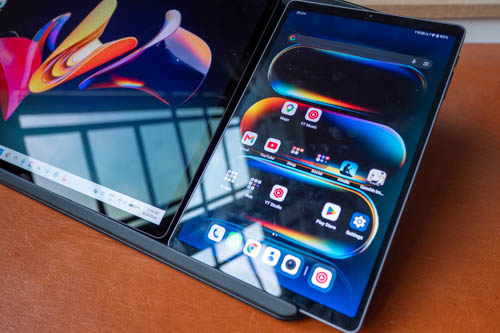
There's anti-reflective coating but it doesn't seem to be as good as I prefer, but having is better than not having.
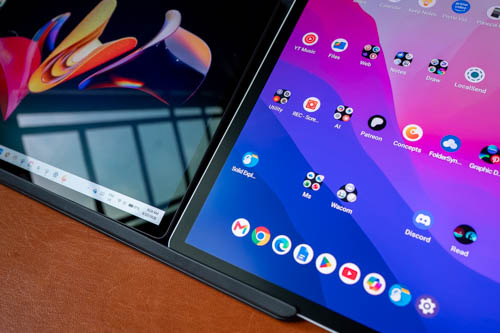
And this is how the anti-reflective display looks vs matte glass.
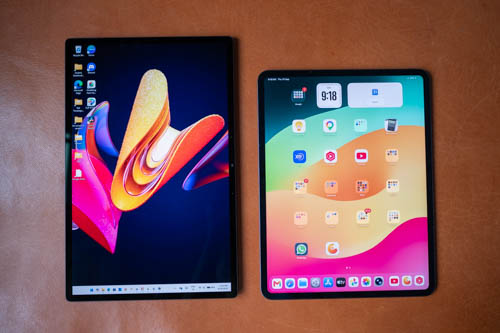
The tablet is much bigger than a 13-inch M4 iPad Pro. The two tablets are quite different though because one runs Windows OS and the other iPadOS.
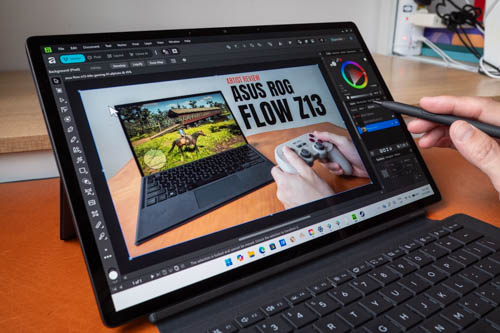
14-inch is sufficiently big to work with graphic design and drawing apps that have toolbars and palettes by the side.
Performance
Performance looks and feels responsive.
I've only tested the tablet for drawing so I didn't really push the processor to its limits. You'll have to look for other reviews if you want benchmarks fo video editing.
OS and software
This tablet runs on Windows 11 Pro.
To get the best drawing experience, there are many settings to change.
Under Pen & Windows Ink, set "Ignore touch input" otherwise the pen may sometimes not draw when your palm is on the display, Finger gestures for pan, zoom, rotate will still work.
For drawing apps that rely on 3 and 4 finger gestures, you'll have to disable Windows' own 3 and 4 finger gestures otherwise there will be conflicts.
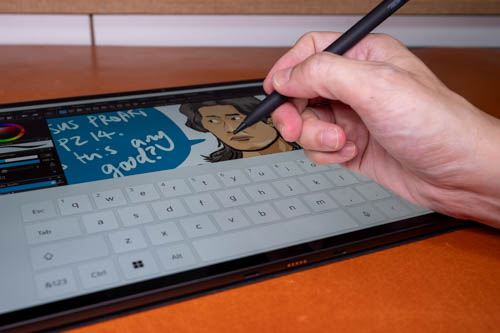
Palm rejection is not flawless so it's best to have the taskbar hide automatically, otherwise your palm may press buttons at the corners.
Disable "Touch screen edge gestures" for left and right edge swipe, otherwise your palm may swipe out widgets from the left and right edges of the display.
The pen has haptic and I don't like it. When drawing you can feel the haptic vibrating and there's a disconnect because you're drawing on smooth glossy display, also the haptic vibration can be heard in a quiet room.
With Krita, you have to go into settings to enable Windows Ink, then restart the app.
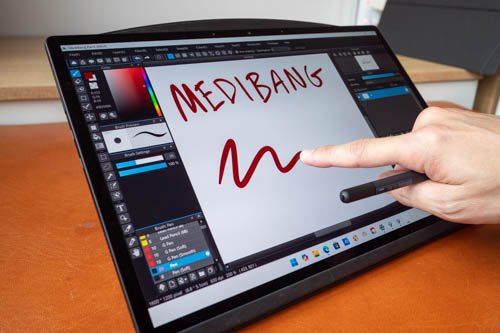
Palm rejection may not be enabled by default so you may have to enable that manually. There are desktop drawing apps that are not designed with touchscreens in mind so those apps may not have palm rejection, e.g. Medibang Paint Pro on Windows. Photoshops runs well, surprisingly well. CSP works fine. Krita works fine.
ARM architecture
ARM chips have a different architecture compared to Intel and AMD. As a result, not all drawing apps can run, and some drawing apps are in the midst of being updated to run on ARM chips.
For example, Adobe Fresco, Bridge, Indesign, Illustrator are not available as they are incompatible with ARM. The version of Adobe Premiere and After Effects supported at the time of review is 26.5. There are Beta versions 27 of these two apps but I'm not sure how stable they are.
The most important thing you need to know is to check if the app that you need can actually run on ARM before you buy this tablet.
Pen
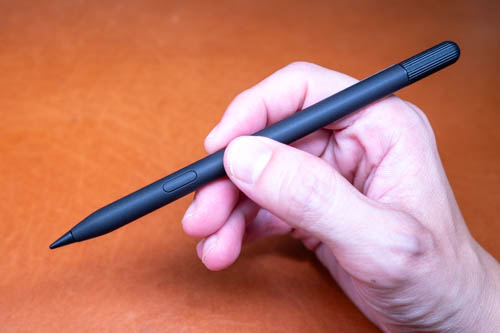
This is the ASUS Pen SA205H that was released together with the tablet. The pen could be designed specifically for this tablet as it supports magnetic charging and pairing when it's attached to the back.
Dimensions are 160mm±0.3mm Ø8.9±0.1mm. Weight is 15.9g.
There's one side button and a back button and eraser. The side button can be disabled so that you can assign the drawing app's shortcut to it.
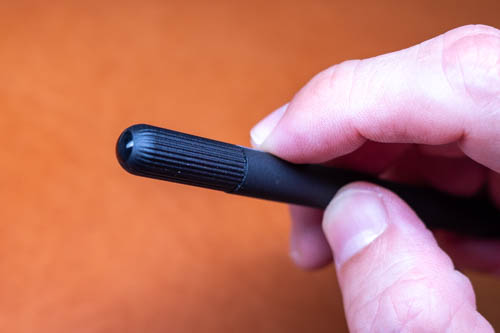
The back button can have single, double click shortcuts.
The pen uses Microsoft Pen Protocol (MPP) 2.6. It supports tilt, 4K levels of pressure and palm rejection. There's cursor hover.
ASUS did not provide any software to customise the pressure curve of the pen, so you'll have to rely on drawing apps for that.
The pen will behave erratically when tablet is charging.
Line tests
Line tests below were created with Medibang Paint.
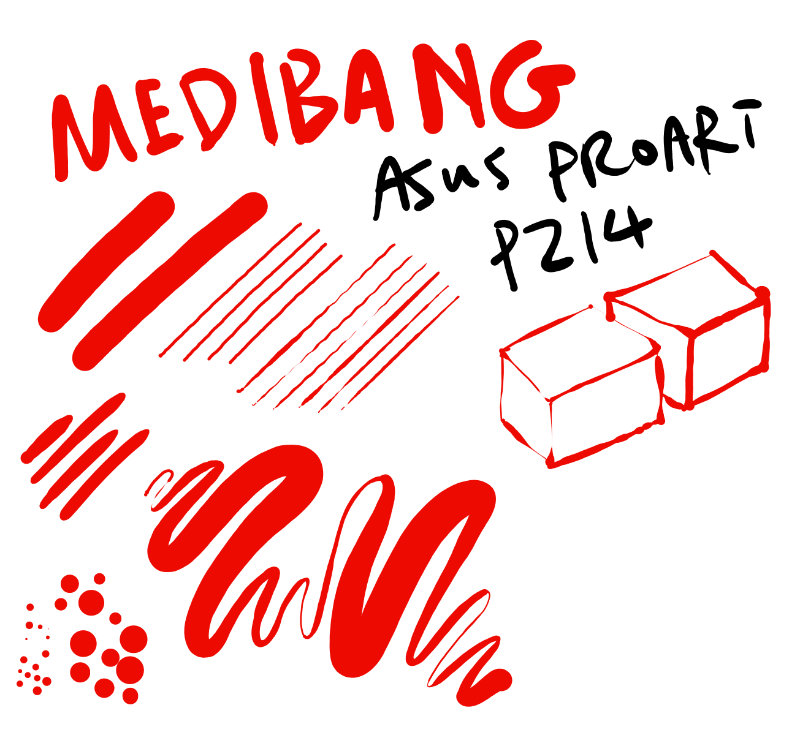
Results of the line tests are not good.
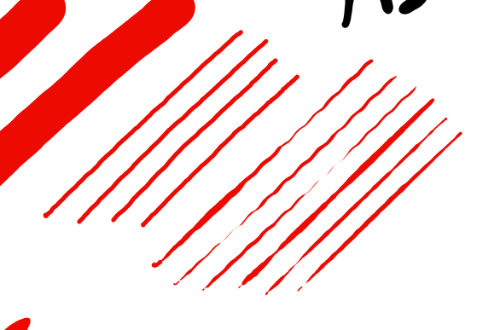
There's slight diagonal line wobble but the bigger issue is the pen has difficulty maintaining consistent pressure when drawing with minimal pressure.
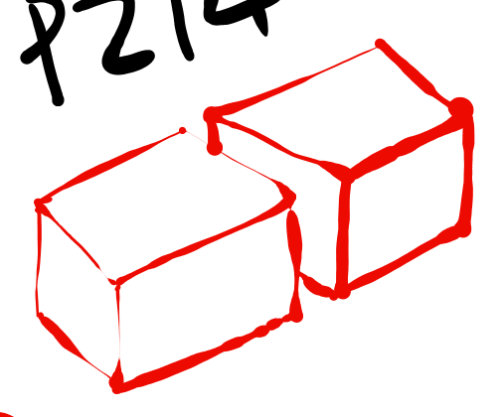
There's no problem with cursor misalignment. Here you can see I've difficulty drawing smooth natural looking lines.
The pen also has difficulty drawing smooth tapered strokes. Lines will often taper abruptly, with a round end or worse with a shoelace effect.
When applying minimal pressure to draw dots, dots may not appear.
Initial activation force of the pen is low, but the pen has difficult detecting minimal changes in pressure when drawing with minimal pressure.
The pen supports tilt, but I was not able to get the cursor to follow the direction of the pen with Krita and Photoshop.
Drawing experience
Windows requires much setup before you can enjoy a better user experience, but even so the drawing experience with a MPP pen will never be as good compared to the Apple Pencil or a Wacom EMR pen.

This was drawn with Medibang Paint. When switching from heavy to light pressure, sometimes the lines to become too thin suddently. Drawing the hair was difficult because I could not get the hair to taper smoothly and sharply.
When drawing tapered strokes, you really have to be more intentional. You definitely need to spend more time to get a feel of how this pen performs.
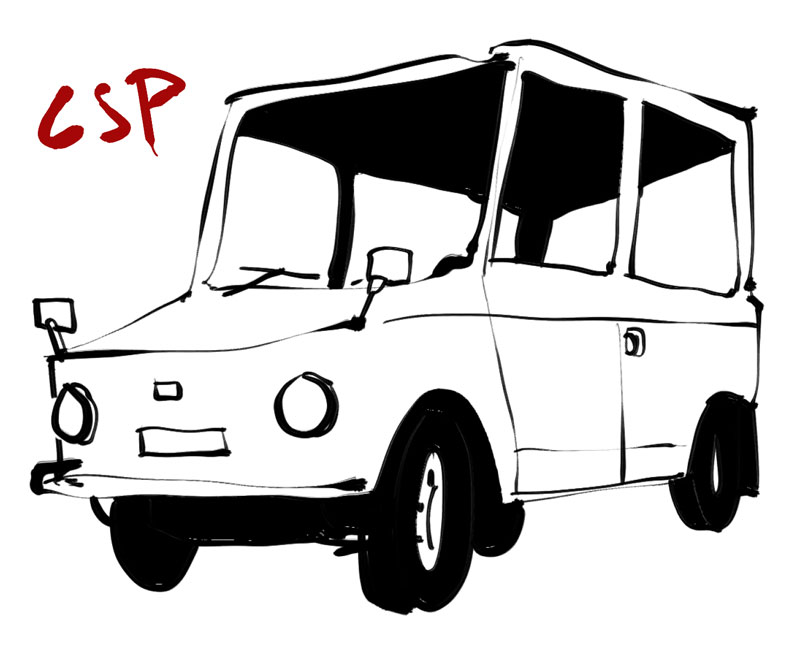
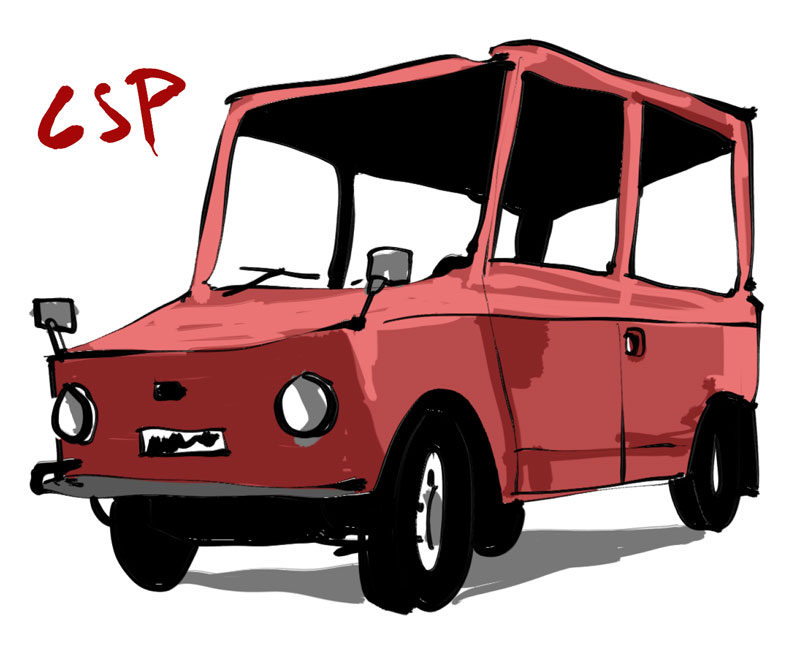
Clip Studio Paint works best on this tablet. This app allows you to customise the pressure curve, and you can also choose how the lines taper. The desktop version of this app is a one time purchase while CSP on iPad and Android tablets is subscription based.

Photoshop ran rather smoothly and that's great because I've tested many Windows tablets where Photoshop can feel sluggish.

Pen performance with Photoshop is not great. It's difficult to maintain consistent pressure and difficult to get lines to taper nicely.
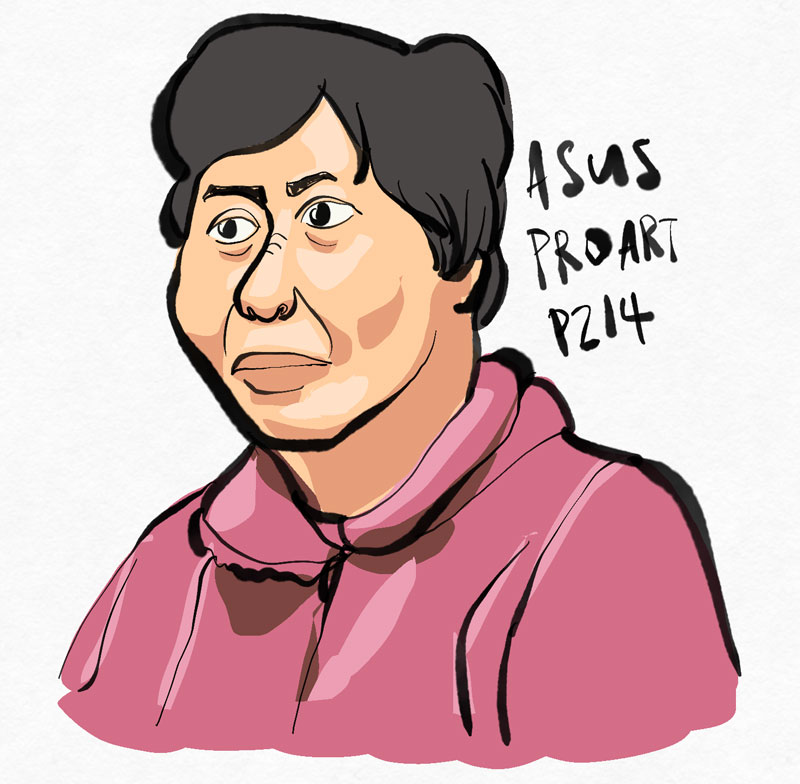
Concepts seems to work fine, but this app is quite forgiving even if the pen performance isn't good.
14-inch is a big display for a portable and this size works well with desktop drawing apps that have many UI elements.
Note that many desktop drawing apps are not designed with touchscreens in mind, so the best way to be more efficient with those apps is actually to use keyboard shortcuts. For example to adjust brush size with Photoshop, you need to click once before you can see the brush size slider. Medibang Paint (Win) has no palm rejection, a feature only for the iPad and Android version.
Navigation gestures such as pan, zoom and rotate are usually supported. 2-finger tap to undo may not be supported. And with Windows, you can't swipe up and hold to see all the opened apps.
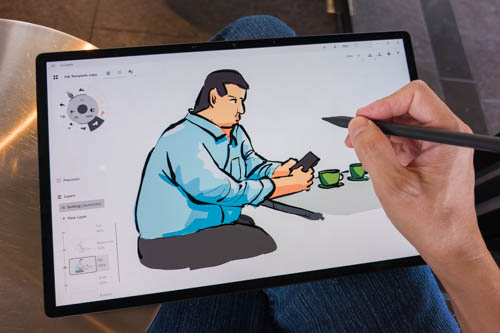
As palm rejection does not work that well, resting your palm on the display may mean creating stray strokes in apps that do not have palm rejection, and you may pull out widgets from the edges of the display, or touch the palettes of drawing apps or buttons on the taskbar.
Battery life
Battery life is much better than expected. The ARM chip architecture really does wonders with battery life.
I did not measure the battery life as it's not something I would think about. With Microsoft Surface Pros that run Intel processors, battery life is bad. ARM battery life is very good, and this tablet can fast charge up to 90W which is incredibly fast.
Conclusion
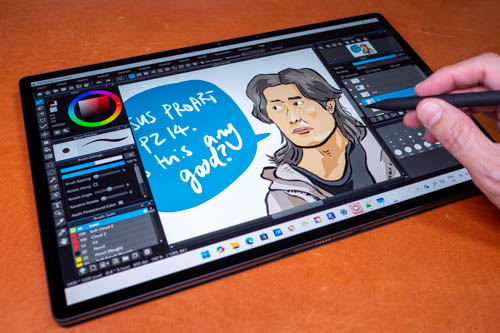
The hardware of the ASUS ProArt PZ14 is great, except for the pen. For drawing, ASUS Pen 3 is that good unfortunately and can't compete with Apple, Wacom or even Huawei.
There's much setup to be done before you can get a more enjoyable drawing experience, but even so because of the pen performance and palm rejection are not perfect, the overall drawing experience isn't good.
The tablet can be used for casual drawing, note taking but the line quality is definitely not good enough for professional work that requires accuracy.
If you're thinking of creating digital art, I would recommend you get an iPad, Android tablet with proper pen support or the Wacom MovinkPad Pro 14. Then get a separate laptop.
Pros and cons at a glance
+ Well made, premium build quality
+ Bright, vibrant, sharp OLED display
+ 120Hz refresh rate
+ Long battery life
+ Silent operation most of the time
+ Has some water resistance
+ 90W fast charging
+ Keyboard case is well made
+ Keyboard can be used away from the tablet
+ Pen can be charged and paired magnetically
+ Audio quality is good
+ There's microSD card slot
+ Processor is fast and powerful
- Palm rejection with Windows is not great
- Some drawing apps are not compatible with ARM
- Pen uses MPP and has difficulty drawing with minimal pressure
- Much setup is needed with Windows to improve experience with drawing
- OLED display has PWM that can affect sensitive eyes
Availability
You can find the ASUS ProArt PZ14 from ASUS Singapore online store and Shopee SG.


Add new comment