
Review: XPPen Artist Ultra 14 OLED pen display
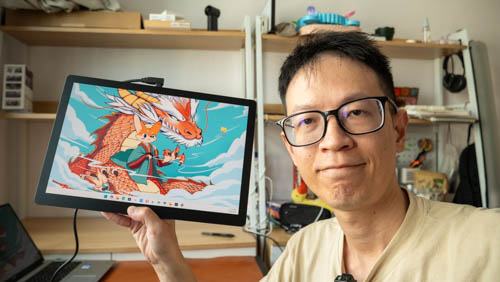
Review sample provided by XPPen
XPPen has just released the Artist Ultra 14 OLED pen display on 17 Aug 2026. This is a pen display with a 14-inch touchscreen OLED panel with 2880 x 1800 resolution, 16:10 aspect ratio and 90Hz refresh rate. This is the smaller version of the Artist Ultra 16 OLED released almost a year ago.
Price of the Artist Ultra 14 OLED at time of review is USD 699 and the special launch offer price is USD 592.99 (15% off) until mid-September.
Video review
Specifications
| Category | Details |
|---|---|
| Product | Artist Ultra 14 |
| Model | MD140QH |
| Color | Frost Silver |
| Dimensions | 330.4 x 221.6 x 8.0 mm |
| Net Weight | 720g |
| Work Area | 301.8 x 188.6 mm |
| Display Type | AMOLED |
| Display Size | 14 Inch |
| Aspect Ratio | 16:10 |
| Resolution | 2880 x 1800 Pixels (2.8K) |
| Refresh Rate | 90 Hz |
| Color Gamut Coverage Ratio (Typical) | 99% Adobe RGB, 99% sRGB, 99% Display P3 |
| Display Color (Typical) | 1.07 Billion |
| Brightness (Typical) | 350 nit |
| Viewing Angle | 178° |
| Full Lamination | Yes |
| Touch Screen | 10-point touch, Anti-glare glass, Anti-fingerprint coating |
| Stylus Models | X3 Pro Smart Chip Stylus PD21D, X3 Pro Slim Stylus PD51B |
| Stylus Technology | Chip-powered & EMR |
| Pressure Levels | 16384 |
| Initial Activation Force | 3 g |
| Accuracy | ±0.4 mm (center) |
| Reading Height | 10 mm (center) |
| Resolution (Stylus) | 5080 LPI |
| Power Input | 100-240V |
| Power Output | 12V⎓2.5A |
| Ports | Full-featured USB-C x 2 |
| Compatibility | Windows 7 or later (Touch function supports only on Windows 10 or later), macOS 12 or later, Android 10.0 or later (USB3.1 DP1.2 required), ChromeOS 88 or later, Linux (Touch function supports only on Ubuntu 20.04 LTS or later) |
Things included
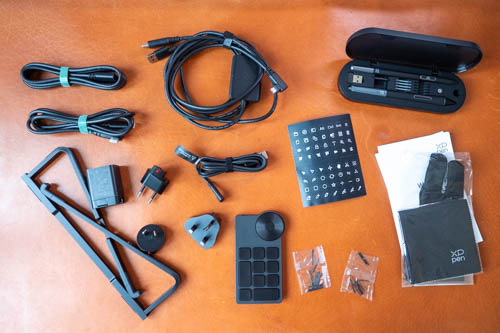
- Artist Ultra 14 Drawing Display x 1
- X3 Pro Smart Chip Stylus x 1
- X3 Pro Slim Stylus x 1
- Pen Case with Nibs (X3 Pro Slim Stylus nibs x 4, X3 Pro Stylus felt nibs x 4)
- ACK05 Shortcut Remote x 1
- Bluetooth Receiver x 1
- USB-C to USB-C Cables x 2
- Power Adapter x 1
- 3-in-1 Cable x 1
- X3 Pro Slim Stylus Nibs x 10
- X3 Pro Stylus Standard Nibs x 10
- ACS20 Stand x 1
- Cleaning Cloth x 1
- Glove x 1
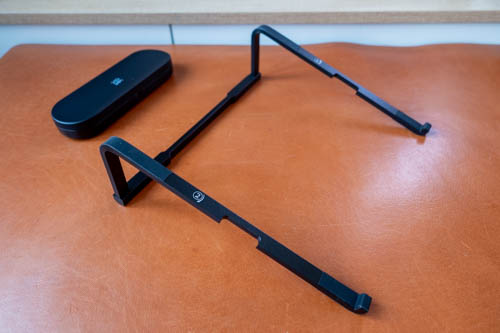
This is the better stand compared to the one that has to stick to the back of the Artist Pro 16. Main limitation is the stand has only one angle.
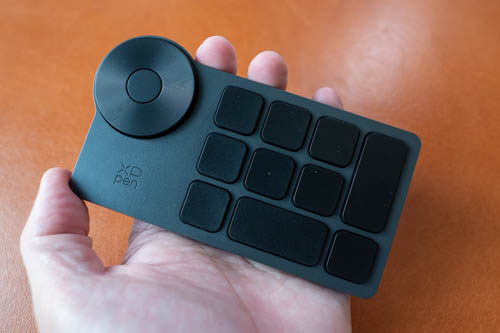
The XPPen ACK05 Bluetooth shortcut remote works fine. I'lll not talk too much about this shortcut remote as I've reviewed this in detail years ago. I don't use this because I prefer a keyboard that has access to all keyboard shortcuts instead.
Design
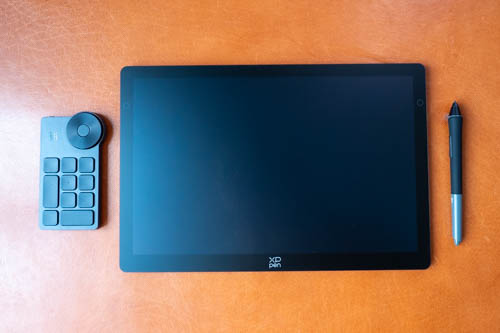
Design of the pen display is clean and simple. It definitely looks like a portable tablet when there no cable is attached.
Dimensions are 330.4 x 221.6 x 8.0 mm. Weight is just 720g. Work area is 301.8 x 188.6mm so that's smaller than A4-sized paper.
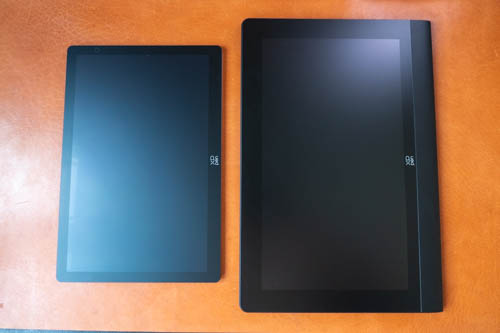
If you have the budget, I recommend getting the 16-inch model (above right) where the bigger display will work better with drawing apps that have many UI elements.
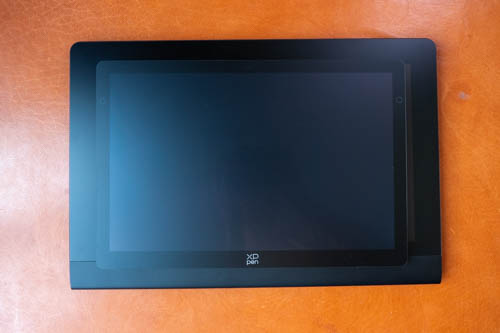
The body of the 14-inch is almost the same size as the drawing area of the 16-inch pen display. And the drawing area of the 16-inch is almost A4 size.
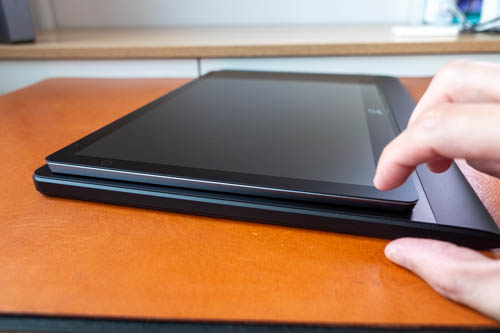
Thickness is just 8mm.
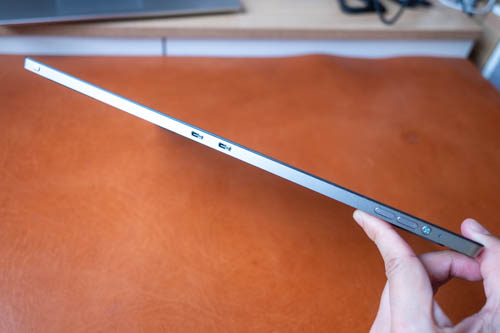
At the top are buttons for power, brightness control, two USB-C video ports, touch control (enable/disable).
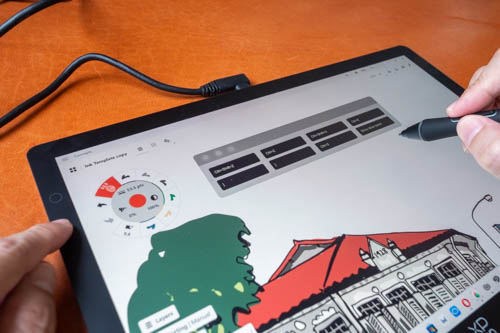
The softkey on the left will show the customisable Floating Menu with 8 shortcuts. The Floating Menu actually takes up a good amount of space so XPPen should find a way to make it smaller.
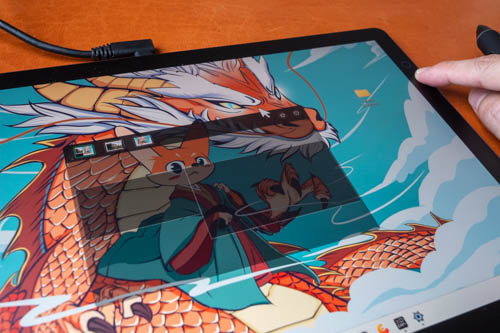
Softkey on the right will show the UI that lets you control the mouse cursor on one or two desktops.
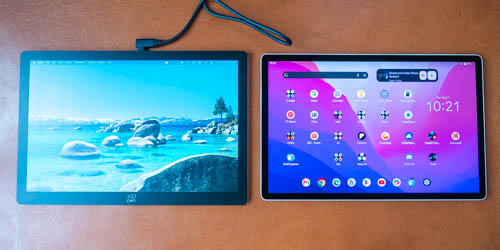
The display size is almost similar to the Wacom MovinkPad Pro 14 (above) and the Samsung Tab S11 Ultra. The XPPen has a bigger body because of the thicker bezels.
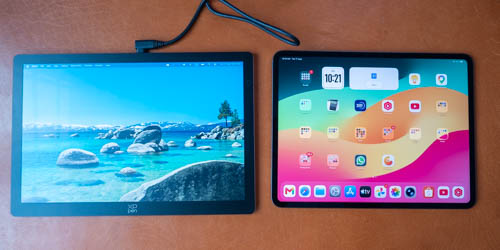
The XPPen has a wider body compared to the 13-inch M4 iPad Pro.
Even though the form factor of the XPPen Artist Ultra 14 OLED is comparable to portable tablets, it is still a pen display which has to be connected to a computer. XPPen markets this as portable and technically it is but it also means you have to bring a laptop around if you want to draw outdoors. It is portable in the sense that you can easily store this away on a bookshelf after use.
The advantage of a pen display over true portable tablets is you can use desktop software.
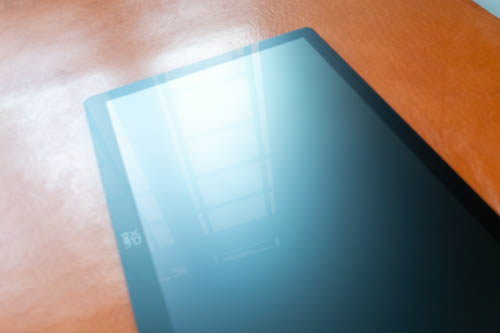
Antiglare of the matte glass surface is more reflective than the one on the 16-inch. The surface texture is smooth matte, similar to screen-less pen tablets. Pen glides smoothly on it but you can still get good control over the pen.
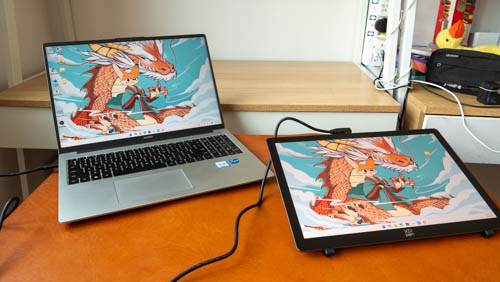
The pen display supports USB-C and HDMI video connection.
For USB-C, a single cable connection is needed, and is able to power the pen display to maximum brightness. When connected to a laptop, this will drain the laptop battery much faster.
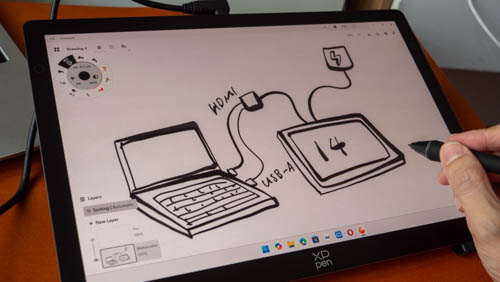
For HDMI connection, you'll need the 2-to-1 cable. HDMI and USB-A (for data) goes to the computer. Another USB cable is needed to provide power to the pen display.
By the way, it is not possible to control the brightness of the pen display from the OS. You have to use the physical brightness buttons or XPPen driver for brightness adjustment.
Display
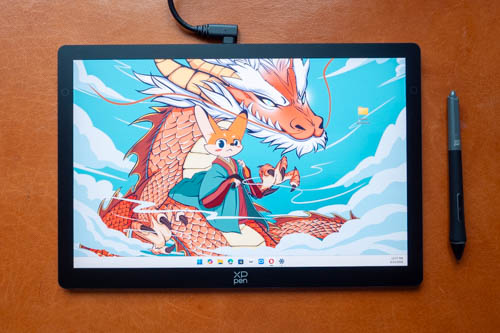
Visual quality of the OLED display looks amazing. My colour calibrator measured 100% sRGB, 92% AdobeRGB, 90% NTSC, 100% P3 and a maximum brightness of 322 nits. I find it interesting the AdobeRGB is not higher, but the overall measures are good. The display is reasonably colour accurate.
According to the colour report, average Delta E for AdobeRGB is 0.68. Average delta E is the variance between the input colour and measured output colour. Anything less than 2 is good, less than 1 is fantastic.
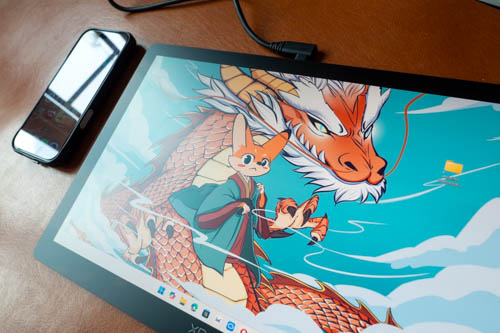
The display does look bright enough and the brightness is high enough to go through the diffused reflections. Contrast looks good, amazing actually when compared to LCDs.
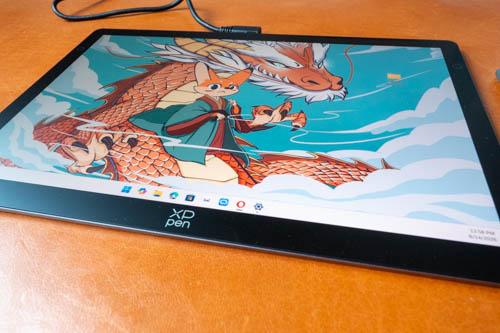
I don't see brightness or colour shift when display is viewed from the side.
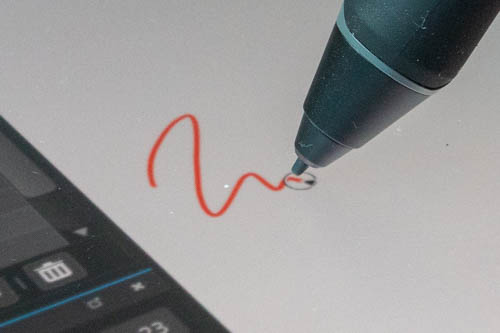
The display is laminated so there's almost no gap between the pen tip and cursor. The glass has some thickness but it's not too thick, and parallax is not really an issue on a 14-inch display.
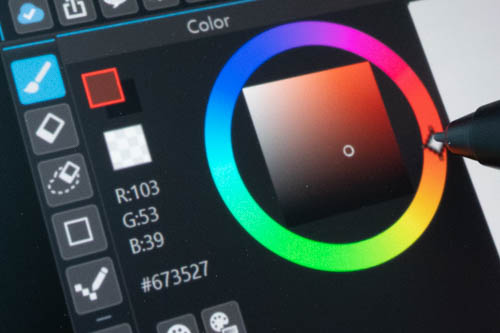
All matte textured surfaces will introduce some colour noise, grain or anti-glare sparkle. I do not notice any colour noise is visible when working from normal distance away, but if I'm looking for colour noise yes I can see that. Resolution of 2880 x 1800 looks sharp and pixelation is not noticeable. If I look real close, I can see a hint of softness but from working distance away the visuals look sharp.
OLED displays have pulse wave modulation which can affect people with sensitive eyes. If you are not sure whether you are affected by PWM, I recommend going to an electronics store to look at OLED displays, eg OLED TVs or laptops, to experience it yourself.
OLED pen displays are still quite new so the risk of burn-in is unknown at the moment. The Wacom Movink 13.3 was released in mid 2024 and the Xencelabs Pen Display 16 OLED was released in May 2024. XPPen Artist Ultra 16 OLED was from September 2026. There isn't much data available yet to let us know how durable OLED displays will be.
Touchscreen
Having a touchscreen is a bonus, but in my opinion not a must have, at least for me as someone who always have the other hand on a keyboard.
The touchscreen works well with most drawing apps on Windows since Windows has support for touchscreen tablets and laptops for more than a decade.
Touchscreen also works with most drawing apps on Mac but not as well. Many drawing apps on Windows actually have support for touchscreen features, e.g. pan, zoom and rotate, but that's not the case with MacOS. Below are my findings for how touch behaves with drawing apps on MacOS:
- Clip Studio Paint (v2): Pan does not work
- Sketchbook: Pan, zoom, rotate does not work consistently
- Photoshop: Pan, zoom, rotate works
- Affinity Photo: Pan and rotate works. Zoom does not work
- Medibang Paint: Pan, zoom, rotate works
- Krita: Pan does not work
Three other Mac-only issues are:
- The rotation or zoom pivot points are usually in the middle of the display and not between the fingers. Krita's rotate/zoom pivot is usually between the fingers.
- When panning with two fingers to move the canvas, the canvas usually moves away from the fingers rather than remain underneath the finger like it does on iPads and Android tablets.
- Palm rejection usually does not work properly unless the pen is near the display.
- Scrolling webpages on a Mac requires a two finger screen. Using the pen would select text. Scrolling webpages on Windows can be done with one finger or the pen.
Pan, zoom, rotate and palm rejection works more predictably and consistently with drawing apps on Windows.
So when drawing on Mac, you'll have to remember which touch shortcuts work, and those that don't.
Driver
I've tested Mac driver v4.0.17_260611, Windows driver v4.0.17_260612.
The driver has similar features to the one for the Artist Ultra 16 so I'll just duplicate the driver portion of the review here.

This is the home screen of the driver.

Look at the top left area and you can see a target icon which is actually the Calibration button to correct cursor misalignment, and the hand icon is for configuring finger gesture shortcuts.

Up to eight shortcuts can be configured for Floating Menu, and you can input your own keyboard shortcuts.

It is possible to set mouse controls to shortcuts for the Floating Menu, pen buttons and XPPen ACK05 shortcut remote.

You can also choose from pre-programmed shortcuts provided by XPPen.
Precision mode makes the cursor move more slowly. Switch touch state lets you enable/disable touch, or set touch to work in a specific area (as configured in the driver)

These are the basic gestures supported, e.g. pan, zoom, rotate. Note that for MacOS, pan/scroll for webpages requires two fingers.

The driver provides advance gesture shortcuts for 3, 4 and 5-finger gestures. For 3 fingers, there's tap, swipe up, swipe down. For 4 fingers, there's swipe left or right. For 5 fingers, there's tap or swipe down. These shortcuts may interfere with gesture shortcuts from the OS or from the drawing apps. If there are conflicts with the gesture shortcuts, you'll have to disable the gesture shortcuts from the OS or from the drawing apps you use.

The default setting for 3-finger tap would call up the Floating Menu, which can be configured to be horizontal (above) or vertical. You can pin the Floating Menu permanently, or configure the shortcuts with the settings button.

Touch area should be left as default so that the whole display can be used as a touchscreen.

Mapping area should be left as default. If the pen is only working specific areas of the display, or the cursor is moving away too much from the pen tip, you may have to configure the mapping area.

The pen display does not have an OSD menu, so to adjust colour settings manually you'll have to do that with the driver. Settings you can adjust include changing the brightness, contrast, colour space (sRGB, AdobeRGB, P3, user), colour temperature and RGB sliders.

Pressure curve can be adjusted using three control points, or pre-programmed pressure curves. Pressure, tilt and mouse mode can be enabled or disabled.

The XPPen ACK05 shortcut remote uses the same driver. From the dropdown menu, you choose either Artist Ultra 16 or Shortcut Remote. The shortcut remote obviously has to be connected first before it will appear, and you have to use the USB-A wireless receiver for wireless connection.
A total of 36 shortcuts can be set to the hotkeys. That's 9 shortcuts per page/group with 1 for switching between different page/group.

It is possible to create groups of shortcuts for specific apps. So different groups of shortcuts will load depending on which app is active.

All the programmed shortcuts can be backed up into a configuration file.
Pens
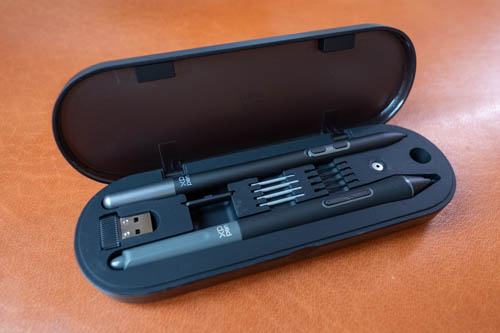
The two pens included with the pen display are the XPPen X3 Pro Stylus PD21 and X3 Pro Slim Stylus PD51. There are only a few felt nibs included and I do recommend getting the felt nibs as they provide slightly more texture when drawing.
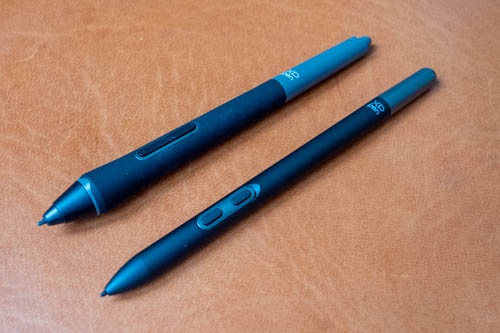
Both pens support tilt, 16K levels of pressure sensitivity and palm rejection. The pens are not powered by battery so no charging is required.
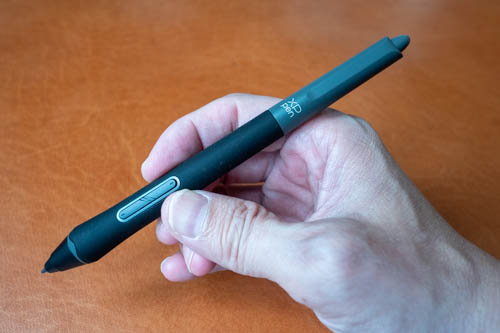
The thicker pen has a big comfortable silicone grip and comes with two side buttons and an eraser.
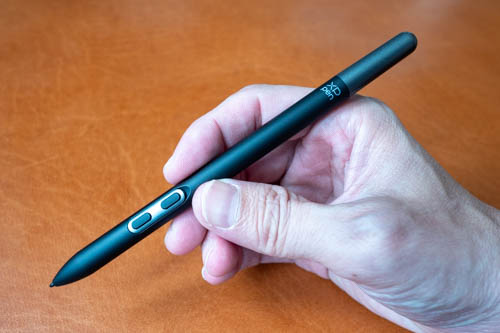
The thinner pen has two side buttons and no eraser.
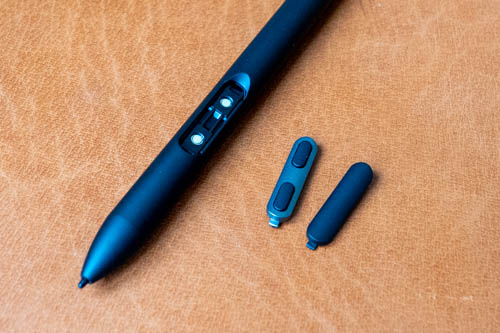
The side buttons can actually be replaced with a cover that's provided. If you use the pen display with an Android device, the side buttons may not be necessary, but those buttons are definitely necessary for use with Windows and Mac.
Line tests
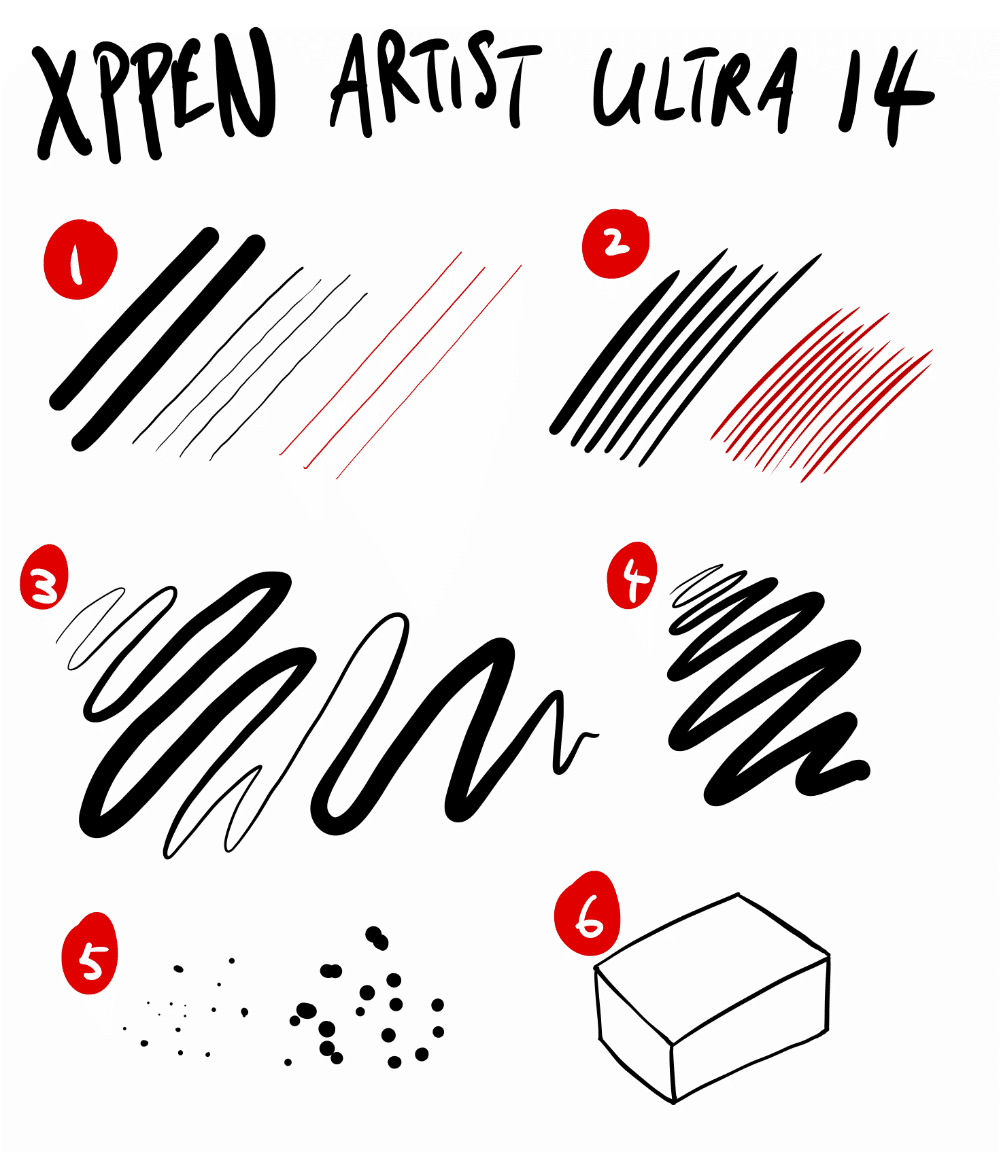
1. Initial activation force is very low. Thin lines can be drawn easily even with a thick brush. There's slight wobble with slow diagonal lines but not really noticeable unless you're looking for it. Diagonal line wobble isn't really an issue when drawing.
Red lines were drawn with a ruler and are perfectly straight.
2. Lines are able to taper smoothly and sharply.
3. Line transition from thin to thick, and back to thin is smooth. The pen is able to draw thin lines after thick lines suggesting the pen has good control over the pressure curve regardless of whether it's heavy or light pressure. This is also a diagonal line and I can see slight diagonal wobble but it's not a pattern that's very noticeable.
4. Line width can be maintain consistently while maintaining consistent pressure.
5. No issues with drawing dots.
6. This is the cursor misalignment test where lines are drawn separately, then joined to check for gaps and overshooting lines. There are no gaps and overshooting lines, which means cursor misalignment is not as issue.
Cursor does not stray away from the pen tip when the pen is held vertical then switched to an angle.
Tilt works well, at least with Krita. Cursor can follow the direction of the pen. Tilt did not work with Concepts app on Windows unfortunately, which is actually one of my main drawing apps.
The pen is quite accurate and sensitive. Performance is consistent and predictable. There's slight wobble with diagonal lines but they don't show up when actually drawing.
Drawing experience
Pen performance is fantastic and I don't have negative things to say about that. But drawing experience can be negatively affected by touch gestures and palm rejection.
Palm rejection is not as perfect compared to iPads and Samsung tablets. I even have to mention specifically Samsung tablets because there are many Android tablets with pen support that have lousy palm rejection.
Switching from drawing on an iPad or Android tablet to a touchscreen pen display will feel off. Shortcuts activating when they should not is frustrating and really breaks the workflow.
To improve palm rejection, you can
- Wear the artist glove provided
- Disable the touchscreen using the top right button
- Disable touch from certain areas on the screen using the driver
- Enable pen-only mode in the drawing app
Touch support not working well is a long-time Windows problem. Even the Microsoft Surface Pro does not have flawless touchscreen support.
It is not surprising that Windows has better touch support than Mac. What's surprising to me is many of the drawing apps on Mac actually support touch, although there are many issues. XPPen's touchscreen support with Mac is better than the Huion Kamvas Pro 19.
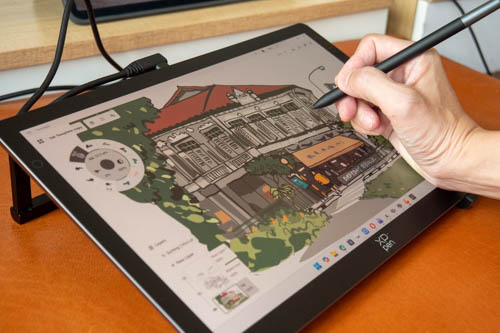
The pen display does not generate much heat since it does not use that much power. I measured 16W power transfer when the pen display is connected to power outlet.
The display is certainly smoother compared to matte screen protectors so that will take time to get used to. Controlling the pen accurately is not difficult. Get the felt pen tips if you want more a more tactile drawing experience.
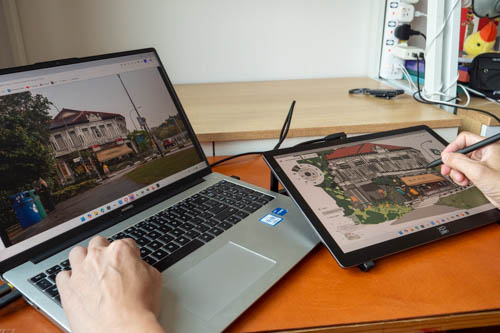
I don't really use the ACK05 shortcut remote as I prefer my keyboard which gives me access to all keyboard shortcuts.
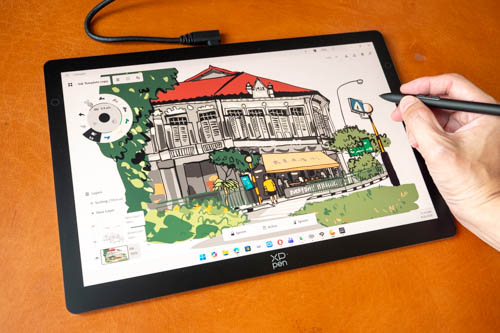
This was drawn with Concepts. Workflow was mostly smooth except for the unintentional undos due to palm rejection.
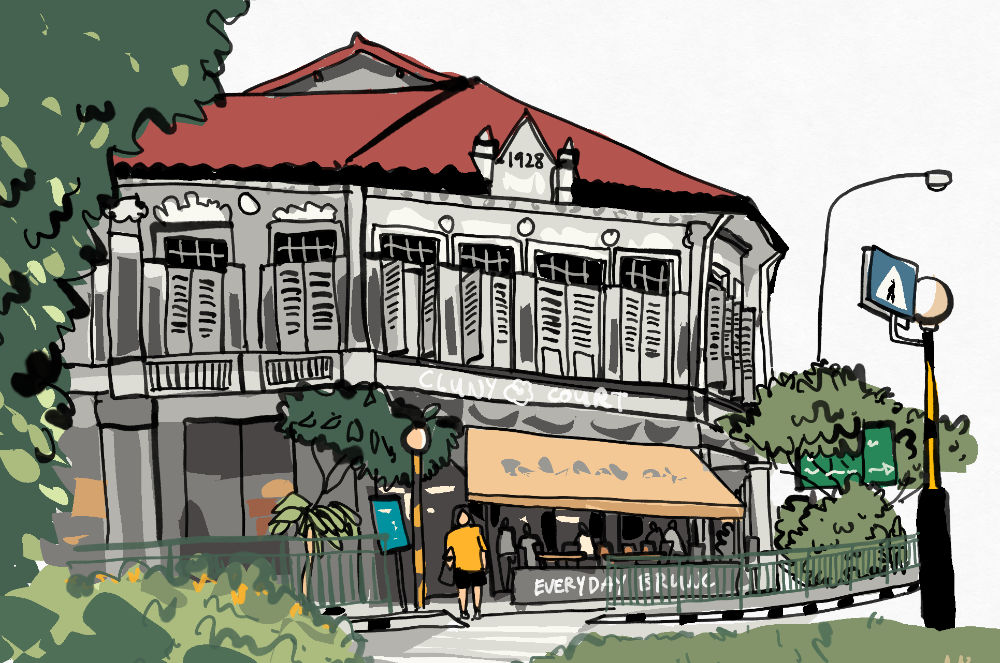
Tilt did not work well with Concepts but that's a problem specific to Concepts.
The best drawing apps to use with a touchscreen are Clip Studio Paint, Krita, Sketchbook, perhaps Concepts.
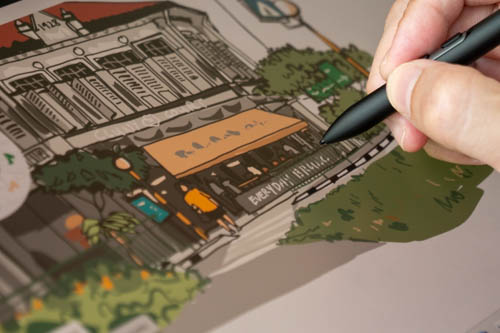
Pen tip is considered firm with minor lateral movement, but no in-out movement. Cursor tracking is accurate. Cursor is always directly beneath the pen tip even when pen is tilted at different angles, unless at really low angles.
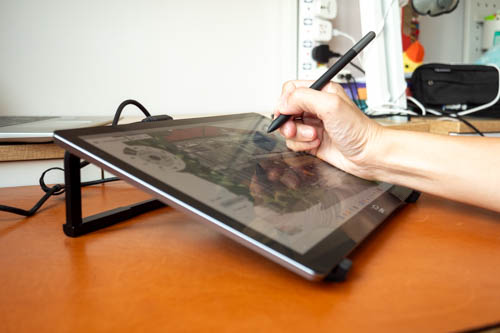
Even though the stand only has one angle, it's still a good and comfortable angle to work with.
If you use drawing apps with many UI elements such as CSP and Krita, I highly recommend getting the XPPEN Artist Ultra 16 OLED instead for the larger display.
Android support
This pen display can work with Android devices that can output video signal, but the pen display has to be connected to power.
Support for Android is not good.
- Medibang can click, but cannot draw
- Concepts, Sketchbook, Infinite Painter and CSP treat the pen no different from a finger
- IbisPaintX and Krita works with pressure and palm rejection
And you cannot swipe up on the pen display to go back to the home screen.
Conclusion
The XPPen Artist Ultra 14 has a wonderful OLED display with good pen performance.
User experience with touchscreen is a mixed bag. For Mac users, you're better off getting a (cheaper) pen display without touch since MacOS does not work well with touch. Windows has better support for touch but even so palm rejection is not perfect, at least not as perfect as iPads and Samsung tablets.
This pen display is a good product. Just note the pros and cons, strengths and limitations.
Pros and cons at a glance
+ Beautiful design
+ Good build quality
+ Stand included
+ Can be powered by a single USB-C cable
+ Softkeys for extra shortcuts
+ Bright, vibrant, sharp display
+ Matte glass has good antiglare
+ Good colour accuracy
+ OLED has much better contrast than LCD
+ Good pen performance
- OLED may not work with certain colour calibrators
- Palm rejection not perfect compared to iPad and Samsung tablets
- OLED has PWM which may affect people with sensitive eyes
- Support for drawing apps on Android is not good
Availability
The XPPen Artist Ultra 14 is available from XPPen online store.
Remember to get extra felt nibs.
By the way, if you have intention to buy this pen display, considering using the affiliate links above. I get to make some commission for each sale but at not extra cost to you. Your support helps me put out more reviews like the one you've just read.
And if my review is inaccurate in any way, let me know in the comments section below.


Add new comment