
Review: Huion Kamvas Pro 27 (144Hz) pen display
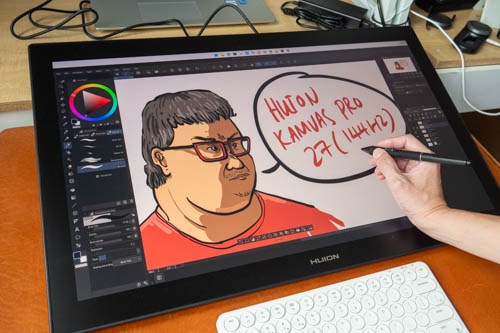
The Huion Kamvas Pro 27 (144Hz) pen display was released in December 2025. This is the bigger brother of the Huion Kamvas Pro 24 (Gen 3), which was released in October 2025.
This is a huge pen display targeted at professional artists who need to see their work big or at 1:1 size. The refresh rate is 144Hz, and the response time has improved to 5ms, so pen latency has improved noticeably. This pen display works better with Windows because of better touchscreen support, and the G1 Color Calibrator software is Windows-only.
The official retail price is USD 2,199, and at the time of review, it is USD 2,089. The smaller Kamvas Pro 24 (Gen 3) is currently USD 1,299.
Specifications
| Specification | Kamvas Pro 27 (144Hz) | Kamvas Pro 24 (Gen 3) |
|---|---|---|
| Product Name | Kamvas Pro 27 (144Hz) | Kamvas Pro 24 (Gen 3) |
| Product Model | GT2702 | GT2402 |
| Color | Black | Black |
| Panel Size | 27" (diagonal) | 23.8" (diagonal) |
| Resolution | 3840 x 2160 (16:9) UHD | 3840 x 2160 (16:9) UHD |
| PPI (Pixels Per Inch) | 163 PPI | 185 PPI |
| LCD Type | IPS 30-144Hz | IPS 60Hz |
| Active Area | 596.7 x 335.7mm | 525.89 x 295.81mm |
| Contrast Ratio | 1000:1 | 1000:1 |
| Brightness | 300nit (Typ.) | 250nit (Typ.) |
| Response Time | 5ms (Typ.) | 14ms (Typ.) |
| Viewing Angle | 89°/89°(H)/89°/89°(V) (Typ.)(CR>10) | 89°/89°(H)/89°/89°(V) (Typ.)(CR>10) |
| Color Gamut Volume | 160% sRGB | 140% sRGB |
| Color Gamut Coverage | 99% sRGB, 98% Adobe RGB, 98% DCI-P3, 98% Display P3 | 99% sRGB, 99% Adobe RGB, 98% DCI-P3, 98% Display P3 |
| Display Color | 16.7M (8bit) | 1.07B (8bit+FRC) |
| Surface Finish | Canvas Glass 3.0 | Canvas Glass 3.0 |
| Full Lamination | Yes | Yes |
| Pen Technology | PenTech 4.0 | PenTech 4.0 |
| Pen Resolution | 5080LPI | 5080LPI |
| Pressure Levels | 16384 Levels | 16384 Levels |
| Accuracy | ±0.3mm (Center), ±1mm (Corner) | ±0.3mm (Center), ±1mm (Corner) |
| Reading Height | >8mm (Center) | >9mm (Center) |
| Tilt Recognition | ±60° | ±60° |
| Finger Touch | 10 Points Finger Touch | 10 Points Finger Touch |
| Digital Pen | PW600 / PW600S | PW600 / PW600S |
| Input Voltage | AC 100-240V, 50/60Hz | AC 100-240V, 50/60Hz |
| Output Voltage | 19V 4.74A | 19V 3A |
| Interfaces | HDMI 2.1, DP 1.4, USB-C, DC, USB-A 2.0 x 2, 3.5mm headphone jack | HDMI 2.0, DP 1.4, USB-C, DC, USB-A 2.0 x 2, 3.5mm headphone jack |
| Adjustable Stand | Integrated Stand 20° | Integrated Stand 20° |
| VESA Compatibility | 100 × 100mm | 100 × 100mm |
| Power Consumption | ≤45W | ≤36W |
| Working Temp. and Humidity | 0-40°C, 20-80% | 0-40°C, 20-80% |
| Storage Temp. and Humidity | -20°C~60°C, 10-90% | -20°C~60°C, 10-90% |
| Dimension | 656.1 x 405 x 22.7mm | 589.2 x 364 x 22.7mm |
| Net Weight | 8Kg | 6.37kg |
| OS Support | Windows 10 or later, macOS 10.12 or later, Android 6.0 or later, Linux (Ubuntu 20.04 LTS) | Windows 10 or later, macOS 10.12 or later, Android 6.0 or later, Linux (Ubuntu 20.04 LTS) |
Things included
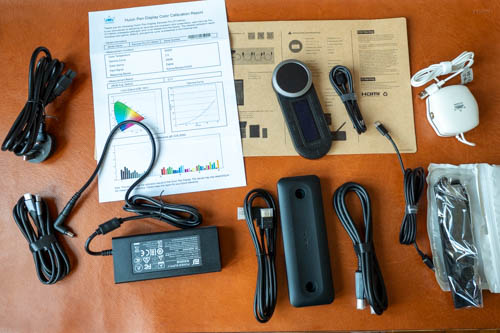
- Kamvas Pro 27 (144Hz) ×1
- Huion Keydial Remote ×1
- Battery-Free Pen PW600 ×1
- Battery-Free Slim Pen PW600S ×1
- Standard Pen Nibs ×5
- Felt Pen Nibs ×5
- G1 Colorimeter ×1
- Pen Box ×1
- USB-C to USB-C Cable (1.8m) ×1
- HDMI Cable (1.8m) ×1
- USB-A to USB-C Cable (1.8m) ×1
- DP Cable (1.5m) ×1
- Power Adapter (Image for reference; plug may vary) ×1
- DC Power Connector ×1
- Palm Rejection Artist Glove ×1
- Cleaning Cloth ×1
- Quick Start Guide ×1
- Color Calibration Report ×1
Design
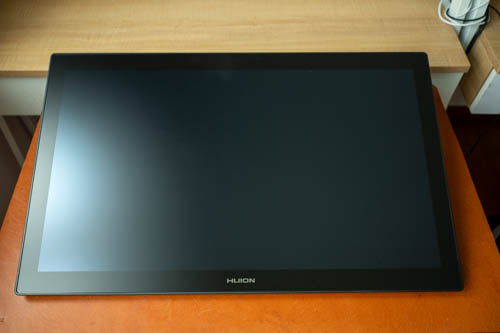
This pen display is huge. You'll need a much larger table because you also need to put your keyboard somewhere.
The design looks clean and simple. The bezels are thick but functional, since they provide space for your hands to rest near the edges.
This is a well-made pen display with solid build quality.
I've used pen displays where you can attach the pens and shortcut remote to the side, and those features are not available here. I actually miss those features, as they are great to have.
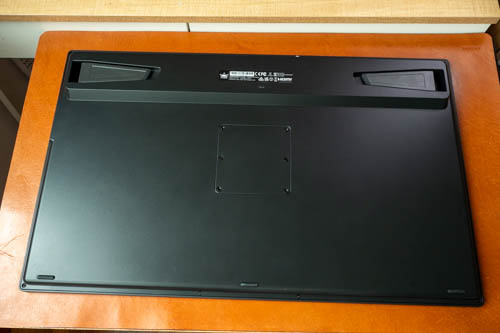
There are two fold-out feet on the back, a 10 x 10cm VESA mount, and 3 rubber feet. The back is made of matte textured plastic.
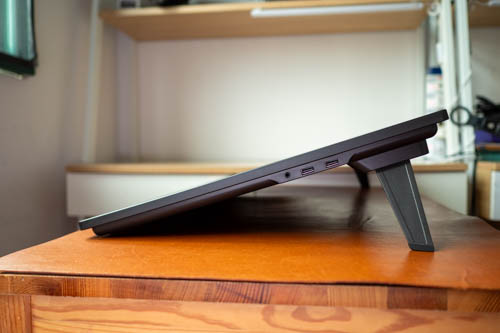
The fold-out feet can only deploy the pen display at a 20-degree angle, which is comfortable for drawing. If you want to prop up the display vertically, I easily recommend the USD 139 Huion ST500 VESA stand (review). The VESA stand is probably a must-buy if you want to use this pen display as your only display.
On the right side, there are two USB-A ports with USB 2.0 transfer speeds.
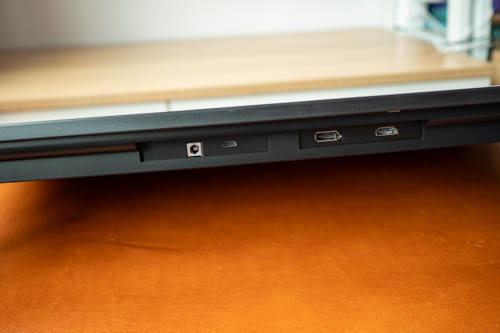
The ports are at the top and face upward. There is a barrel power port, USB-C video, full-size DisplayPort 1.4, and full-size HDMI 2.1, in that order.
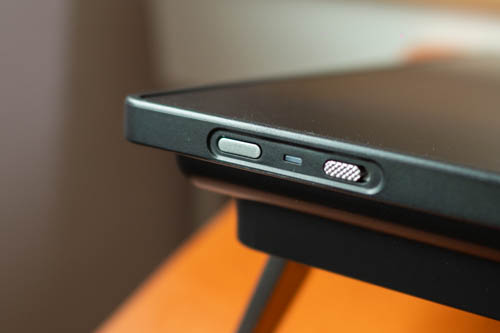
Located at the top right are the power button and a touch control switch to enable or disable touch.
Press and hold the power button for 3 seconds, and the OSD menu will appear. The pen is needed to change the settings. You can adjust brightness, contrast, saturation, gamma, colour temperature, and colour spaces. Some settings may be locked depending on which mode you're using (e.g., gaming or movie modes).
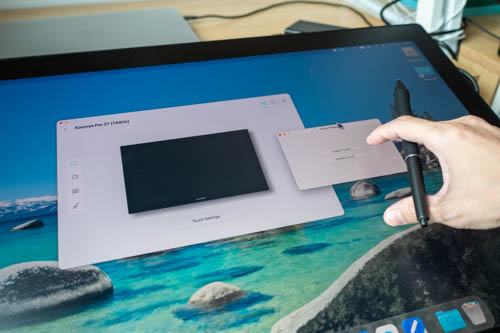
For some reason, touch did not work when I tested it with Mac drivers 20.0.1.109 and 15.7.40, both from 28 Sep 2026. Anyway, even if the touchscreen works with Mac, the user experience is lousy, as drawing apps on Mac are not designed with touchscreens in mind. I'm saying this with the knowledge that Apple has just released a touchscreen MacBook Pro in Oct 2026. Hopefully, drawing apps on Mac will get better touch support in the future.
Display
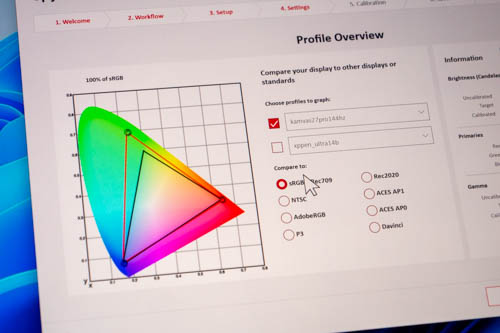
The pen display has good colour accuracy. I measured colour support for 100% sRGB, 90% NTSC, 95% Adobe RGB, and 89% P3.
The average Delta E for sRGB is 0.71, according to the factory colour calibration report. Average Delta E is the variance between digital input colour and measured output colour. Anything less than 2 is good, and less than 1 is fantastic.
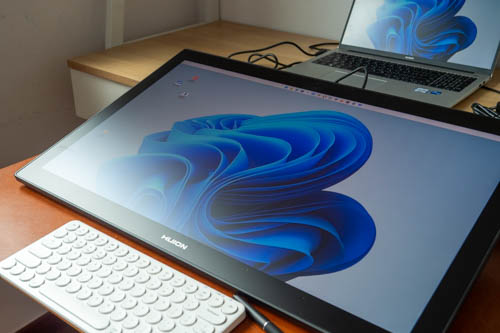
Anti-glare is effective at diffusing reflections, though diffused reflections can still be bright if there's a large light source nearby, such as a window to the side.
The advertised brightness is 300 nits, but I only measured 223 nits. The display is still sufficiently bright for me, as I typically use my desktop monitors at around 150 nits.
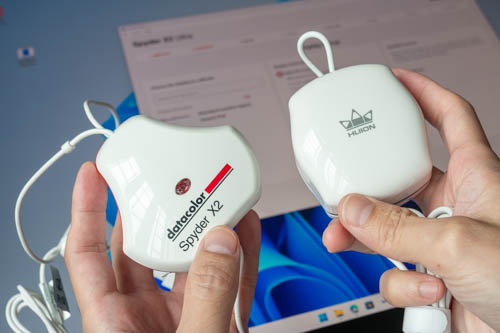
The G1 colorimeter can only be used with the Huion pen display and not with other monitors or laptop displays. The GTCOLOR app will look for the calibrator and the Huion pen display. The GTCOLOR app is Windows-only.
If you use multiple displays, you may want to use your own colour calibrator so that all your displays can be calibrated to the same standard.
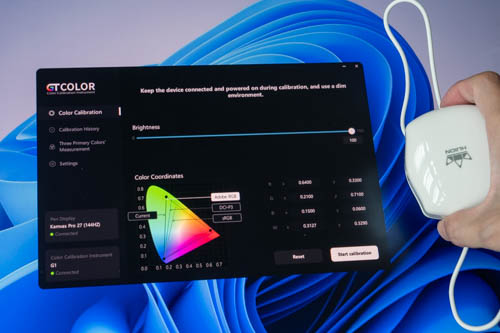
The colour calibration process with the GTCOLOR app is straightforward and faster than expected. Calibration data is stored on the pen display itself, which means you do not have to recalibrate the display when you use it with other computers.
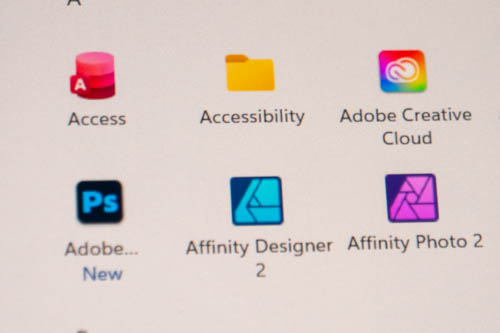
The 4K UHD resolution of 3840 x 2160 on a 27-inch screen provides sharp visuals. However, there's slight softness if you look really closely, though this is not really an issue from a normal working distance.
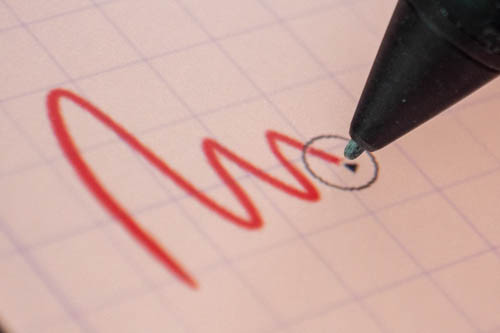
The display is laminated, but the glass has some thickness. Cursor tracking is accurate so the cursor is always under the pen tip, but when the pen is near the edges and you're looking at it from the side, you may see some parallax.
Driver
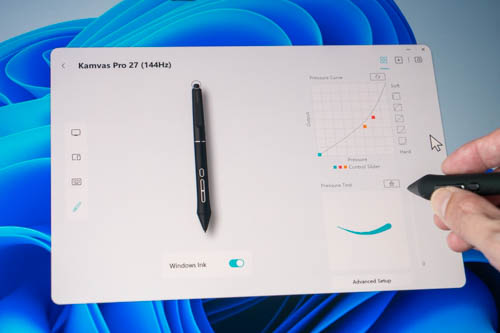
There are drivers for Mac, Windows, and Linux. The drivers I've tested are Windows v20.0.1.123 and Mac v20.0.1.109 and v15.7.40. I wasn't able to get the touchscreen to work with either Mac driver.
For pen customisation, you can adjust the pressure curve by moving three control points. The three side buttons can be assigned shortcuts, though the eraser at the back of the pen cannot. I've set one button to Switch Screen, which is crucial for a dual-display setup, and it works well.
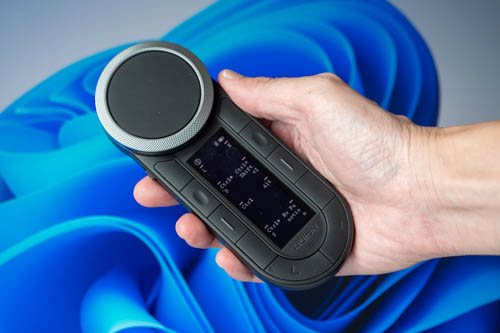
The Huion KeyDial K40 also uses the same driver as the pen display. It's a Bluetooth shortcut remote with 10 buttons and a dial. Two buttons are used to switch between pages of shortcuts. You can create 8 shortcuts per page across 6 pages, giving a total of 48 shortcuts. You can create shortcuts for specific apps—for example, 48 shortcuts for App A and 48 shortcuts for App B—and those shortcuts will load automatically whenever the apps are active.
I don't actually use the KeyDial K40, as I find it limiting compared to using a keyboard, which gives me access to all my keyboard shortcuts.
Pen
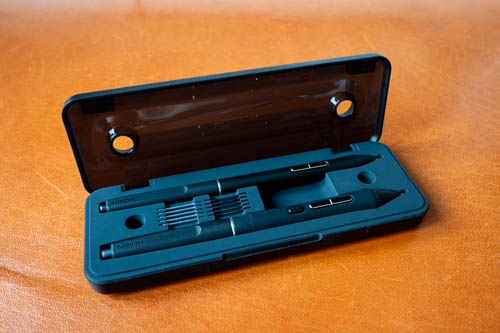
That's the pen case that holds the Huion PW600 and PW600S pens. There are also 5 standard nibs and 5 felt nibs. The pen nib remover is underneath the pen case.
It's great that two pens are included. You can choose the design you like, and if one becomes damaged, there's always a backup. Both pens are well-made and comfortable to hold.
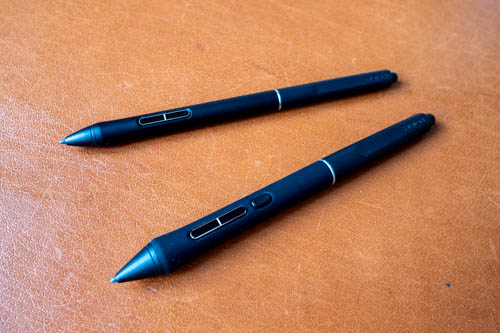
Both pens use PenTech 4.0, which supports tilt and 16K levels of pressure sensitivity. The pens have no battery, so no charging is required. No Bluetooth pairing is needed for the pens to work with the pen display either, though you'll need to install the driver before the pens can be detected.
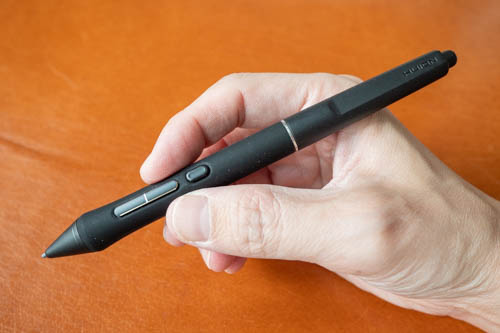
The Huion PW600 has a thicker silicone grip. There are three customisable side buttons and an eraser.
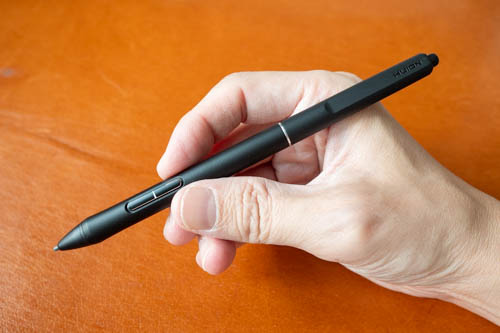
The Huion PW600S is slimmer, like many pens from standalone tablets. There are two side buttons and an eraser.
Both pens have protruding buttons that are easy to feel and provide firm feedback when pressed.
Line tests
Line tests were created with MediBang Paint.
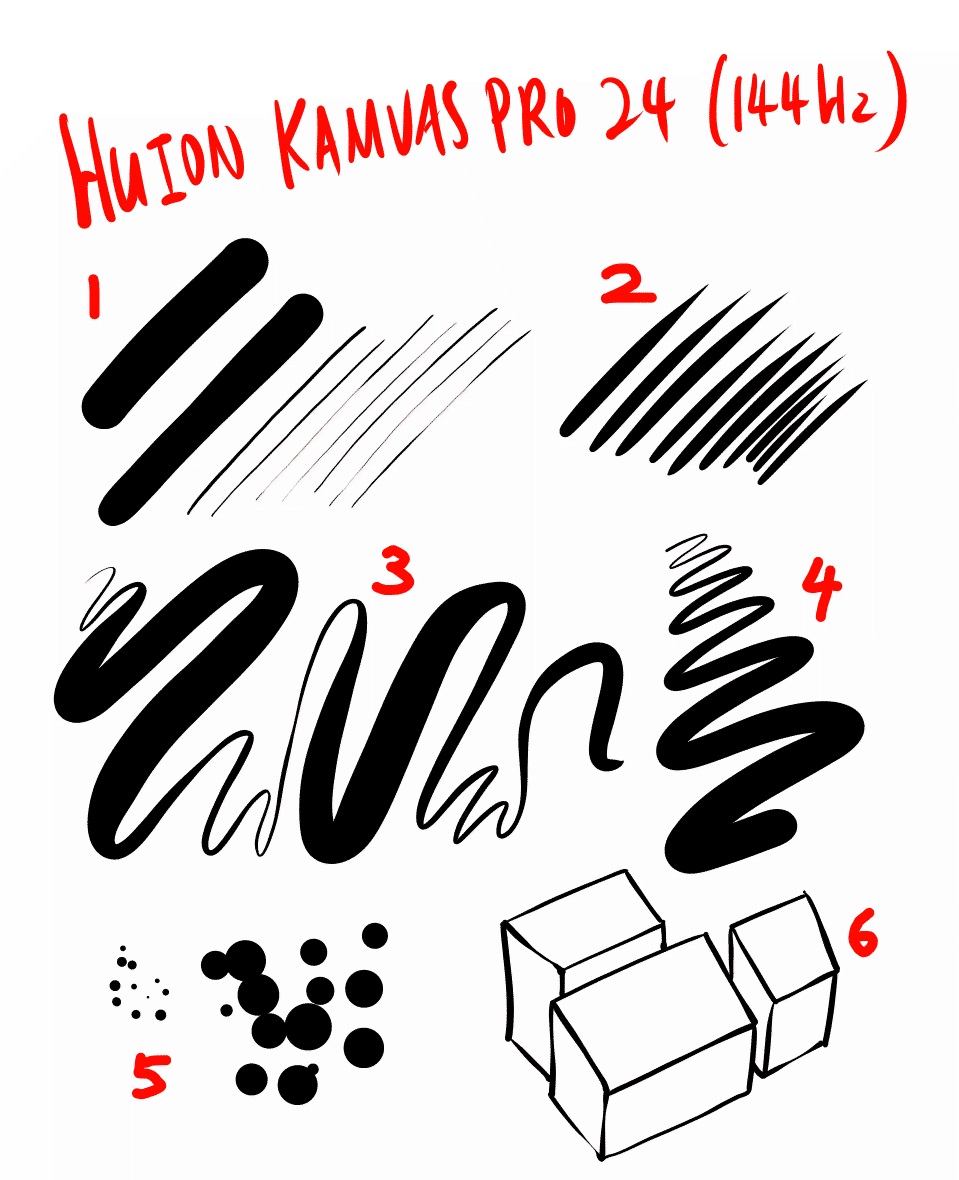
1. The pen has a low initial activation force, so thin lines can be drawn easily. There's no diagonal line wobble or jitter.
2. Lines are able to taper smoothly and sharply.
3. Line transitions from thin to thick and back are smooth. Thin lines can be drawn easily after thick ones.
4. A consistent line width can be maintained easily with consistent pressure. There's no unintentional pressure variance.
5. Dots can be drawn easily.
6. There's no issue with cursor misalignment, and if there is, you can calibrate the pen with the driver.
Tilt sensitivity works fine. The cursor is able to follow the direction of the pen.
Drawing experience
This is a sensitive and accurate pen, and it's definitely good enough for creating professional art. It is one of those pens that you'll know instantly is great after putting down the first few lines. The pen performance is consistent and predictable.
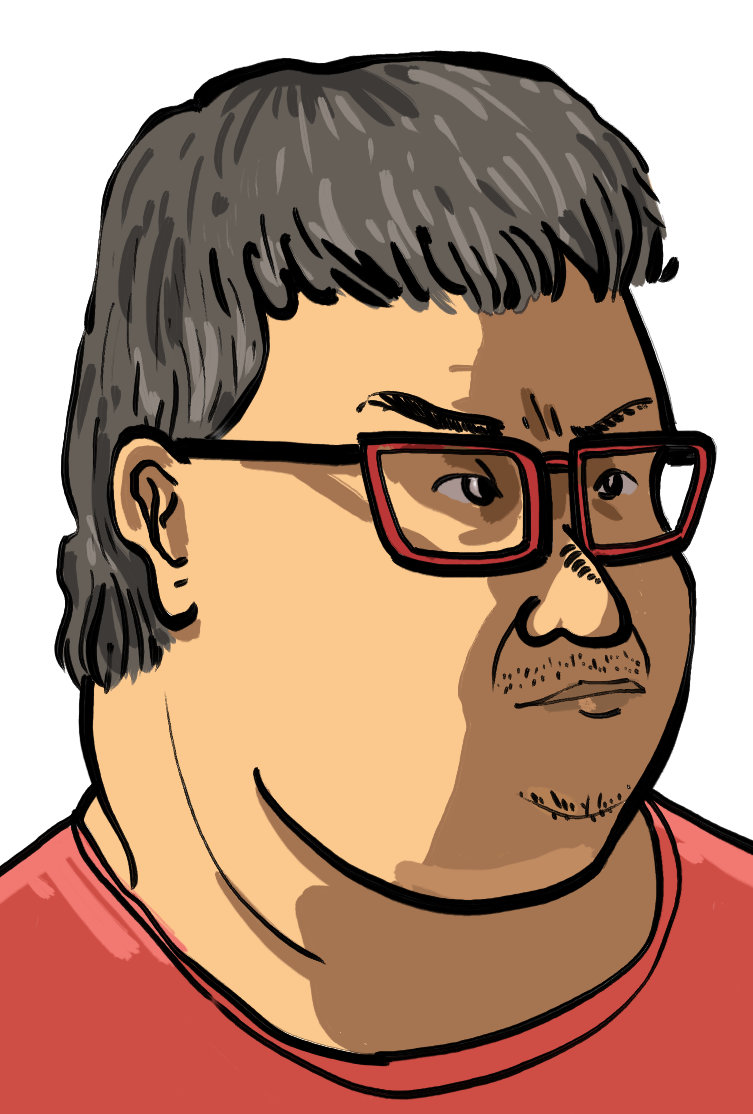
Since the pen performance is fantastic, the drawing experience is wonderful. You also get a nice tactile experience when drawing on the matte surface.
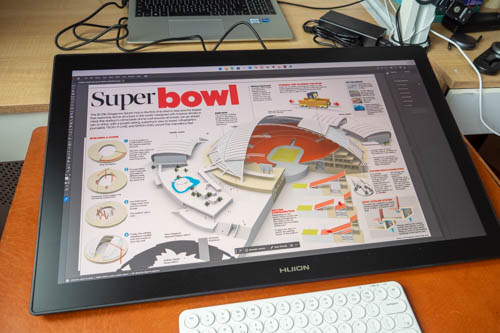
I don't think such a big display is needed for drawing, at least for me. I prefer a pen display that's 15 to 20 inches, maybe because my table is small. A 27-inch pen display is huge. The advantage this display has over smaller displays is that you can view your work at 1:1 size at a glance. This display is big enough to show an A3-size artwork at 100% zoom.
While it's possible to show an A3-size artwork at 100% zoom on, let's say, a 20-inch or 15-inch display, that means the image is cropped with parts out of view, so you have to pan around the image to see everything.
So if you work on large pieces of art and need to see them in full view at actual size (when possible) without cropping, a big display is what you need.
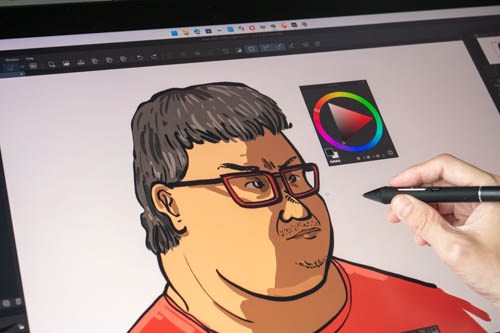
With such a big display, your hands will have to move further to reach the tools and palettes. In the image above, to help me reach the colours more quickly, I pulled the colour palette to the centre of the display.
Palm rejection is probably the main thing that will affect drawing performance. Palm rejection on Windows is not perfect, and there are occasional unintentional undos, stray strokes (in apps that do not have a pen-only mode), and unwanted touches.
The most obvious workaround for better palm rejection is to wear the artist glove.
Here are my other workarounds:
- Move the Windows taskbar from the bottom to the top. Don't worry, you'll get used to its new position soon.
- Disable the slide-from-edge actions in Windows.
- Move the palettes away from the side where your drawing hand rests. This prevents your hand from accidentally touching anything on the palettes.
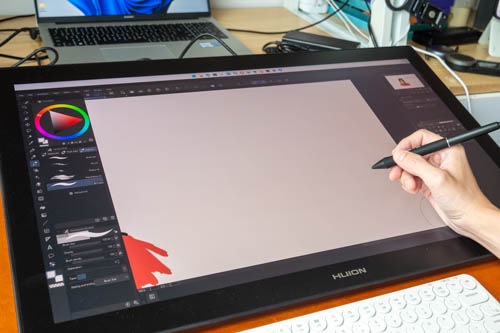
Whenever my palm touched the bottom scrollbar, the canvas would jump to a different place, which was quite annoying.
Windows has some default shortcuts for 3- and 4-finger gestures. You may want to disable them if you want to use 3- or 4-finger gestures in drawing apps.
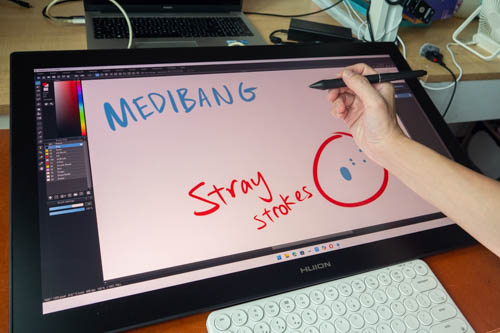
Some drawing apps are not designed with touchscreens in mind, so they may not support palm rejection or finger gestures. For example, MediBang Paint has gesture support and palm rejection for iPad and Android, but not for Windows.
Clip Studio Paint and Adobe Fresco are desktop apps that work really well with touchscreens, as they were designed with touchscreens in mind. Other apps that work well are tablet apps such as Sketchable Plus, Concepts, Sketchbook Pro, and StylusX.
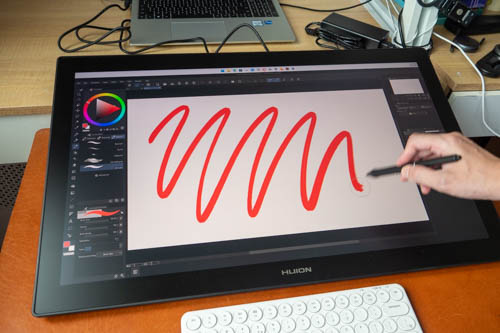
The faster response time and 144Hz refresh rate also help improve pen latency. Response time is now 5ms, compared to the typical 10–15ms on most pen displays. 144Hz makes lines appear faster rather than chunk by chunk, as on 60Hz displays.
Animations for navigation gestures such as pan, zoom, and rotate will vary depending on the app used. Sometimes the animation is fast and responsive, and sometimes it can appear choppy, as if the app is running on a 60Hz display.
Other things to note
Before you buy this pen display, make sure to check if your computer is powerful enough to run the display at 4K UHD resolution and 144Hz. Your computer will need to support HDMI 2.1 or DisplayPort 1.4 and preferably have a dedicated graphics card.
My Windows laptop has an integrated graphics card and is only powerful enough to run either 4K UHD at 60Hz or 1440p at 144Hz. So my laptop is not powerful enough to run the pen display at maximum resolution at the highest refresh rate.
Conclusion
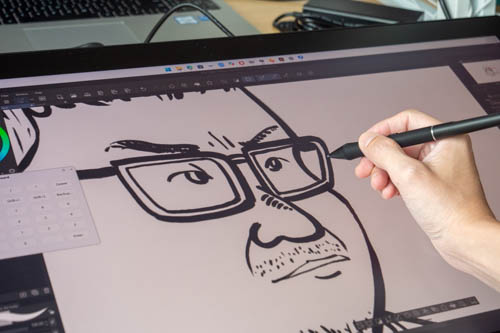
The Huion Kamvas Pro 27 (144Hz) is a well-made professional pen display. It's a quality product. Pen performance is fantastic, and the drawing experience on the matte glass is wonderful.
The huge size is a selling point for those who need it. The 144Hz refresh rate makes everything feel smoother and more responsive, and the faster response time has improved pen latency performance.
The downsides are the lousy support for touch on macOS, the fact that the included colour calibrator has a Windows-only driver, and that palm rejection on Windows is not ideal.
This is a pen display I can recommend easily if it has all the features you need. The price is definitely high, but it has the quality to match.
If you want something more affordable, consider the Huion Kamvas Pro 24 (Gen 3) instead. Its size is slightly smaller, though still huge. The refresh rate is just 60Hz, and the response time is 14ms vs. 5ms.
Pros and cons at a glance
+ Clean and simple design
+ Solid build quality
+ 4K UHD looks sharp
+ 144Hz makes the system feel fast and responsive
+ Faster 5ms response time for improved pen latency
+ 100% sRGB and 95% Adobe RGB support measured
+ Colour calibrator is included
+ Good viewing angles
+ Anti-glare is effective
+ Matte drawing surface has a nice texture to draw on
+ Matte glass surface is unlikely to scratch
+ Matte glass has minimal grain, colour noise, or anti-glare sparkle
+ Supports USB-C video, DisplayPort, and HDMI
+ Two USB-A ports, though only USB 2.0 speed
+ Shortcut remote included
+ Two pens are included
+ Pens do not require charging
+ Pens support tilt and 16K levels of pressure sensitivity
+ Excellent pen performance
+ Has drivers for Mac, Windows, and Linux
+ Does not produce much heat
+ Virtual Keyboard feature provides 24 more shortcuts
- Measured 223 nits brightness is lower than advertised
- Fold-out feet only deploy at one angle
- Colour calibrator software only works on Windows
- Colour calibrator cannot be used with other displays
- Display has slight softness when viewed up close
- K40 shortcut remote usability is questionable
- Navigation touch gestures do not work consistently with drawing apps on macOS
- Palm rejection does not work as well compared to iPads and Android tablets
- OSD can only be controlled by pen and not finger
Availability
The Huion Kamvas Pro 27 (144Hz) is available from the Huion online store.
I recommend getting extra felt nibs (PN06F), as they provide nice tactile and audible feedback when drawing.


Add new comment