
Touch support for Windows tablet drawing apps as of 2025

Article updated in Dec 2025
This article looks at the touchscreen support provided by drawing apps that run on Windows. Obviously I can't cover all drawing apps, so do share your experience in the comments section on apps that I did not mention but you use.
Drawing apps on Windows can be broadly divided into two categories: the desktop apps and the tablet apps.
Desktop apps are those designed for non-touchscreen monitors, and some examples are Photoshop, Clip Studio Paint, Krita, Medibang Paint. Tablet apps are those designed for touchscreen devices and tablets, and some examples include Sketchbook Pro, Concepts, Sketchable Plus, StylusX.
Desktop apps were not designed with touchscreens in mind, but over the years, many have actually been updated to support some finger gesture shortcuts. However, the most important shortcut, in my opinion, the double finger tap-to-undo shortcut is sometime still not supported. So with most desktop drawing apps, you're usually limited navigation shortcuts such as pan, zoom and rotate.
All drawing apps are assumed to support the standard 2-finger navigation gestures for pan, zoom and rotate unless otherwise stated. Some may not support double finger tap to undo, which is quite a common touchscreen shortcut.
TLDR: There are no drawing apps on Windows tablets that can match the support of finger gestures provided by Procreate on iPad. If you want additional finger gestures or shortcuts, consider getting the Tablet Pro Studio app from Microsoft Store.
Concepts (freemium)

Concepts is a sketching app with minimal UI that's designed with finger gestures and tablets in mind. This app is actually not easy to use without a touchscreen.
The UI is similar on iPad, Android and Windows.
This app supports 2, 3, 4 finger shortcuts, tap & hold, and has perfect palm rejection.
Medibang Paint Pro (subscription)

The UI for Medibang Paint Pro is different on tablets (iOS & Android) vs on desktops (Mac & Windows).
Windows version of Medibang uses the desktop UI with smaller buttons which are easier to click with cursor than fingers. Palettes can be stacked and moved to float anywhere on the screen.
Windows version of Medibang only supports the standard navigation gestures. There are no gestures for undo, redo, eyedropper or other tools and commands. Palm rejection is perfect.
Shortcuts are best used with a keyboard.
Sketchbook Pro (US $19.99)

Sketchbook Pro (iOS and Android) supports finger gestures.
Sketchbook Pro (Windows) does not support finger gestures other than the standard navigation gestures. This is kinda disappointing because the UI of the app is minimal and designed for tablets. Shortcuts are best used with a keyboard.
At least palm rejection is perfect.
Krita (free)
Krita is a desktop app with the classic desktop UI of having tools on the left and palettes on the right. UI elements are small and meant for cursor not fingers.
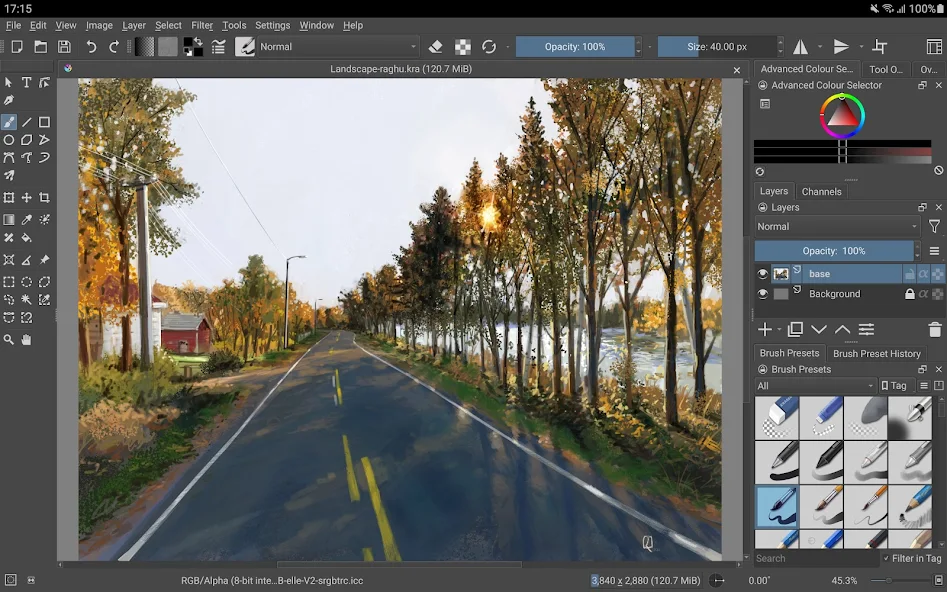
Shortcuts supported are 2 fingers undo, 3 fingers redo, 4 fingers to hide the UI elements, tap & hold for the tool wheel. Palm rejection is perfect.
Shortcuts are best used with a keyboard.
Clip Studio Paint (subscription)

Clip Studio Paint is a desktop app with the classic desktop UI of having tools on the left and palettes on the right. UI elements are small and meant for cursor not fingers.
Shortcuts supported are 2 fingers undo, 3 fingers redo, tap & hold for eyedropper, 3 fingers tapping on the navigator palette to show whole canvas.
Shortcuts are best used with a keyboard.

CSP has recently launched a Simple Model feature in 2023 that simplifies the user interface into something more minimalist. Working with fingers is definitely easier and more convenient with the new UI.
Adobe Fresco (subscription)

UI for Adobe Fresco is designed for tablets but the only gestures supported are 2 fingers undo, 3 fingers redo, tap & hold for eyedropper.
Sketchable Plus (US $19.99)

Sketchable Plus used to be known as Sketchable.
Sketchable is designed for tablets but surprisingly does not support finger gesture shortcuts except for navigation shortcuts. So that's quite disappointing.
Shortcuts are best used with a keyboard.
Adobe apps (subscription)
Most apps are designed for desktop use with small icons and palettes meant for cursors not fingers.
Adobe desktop apps do not support finger gesture shortcuts except for navigation shortcuts. At least palm rejection is perfect.
Affinity
Affinity Photo, Affinity Designer and Affinity Publisher used to be three separate apps but are now combined into one by parent company Canva. These apps designed for desktop use with small icons and palettes meant for cursors not fingers.
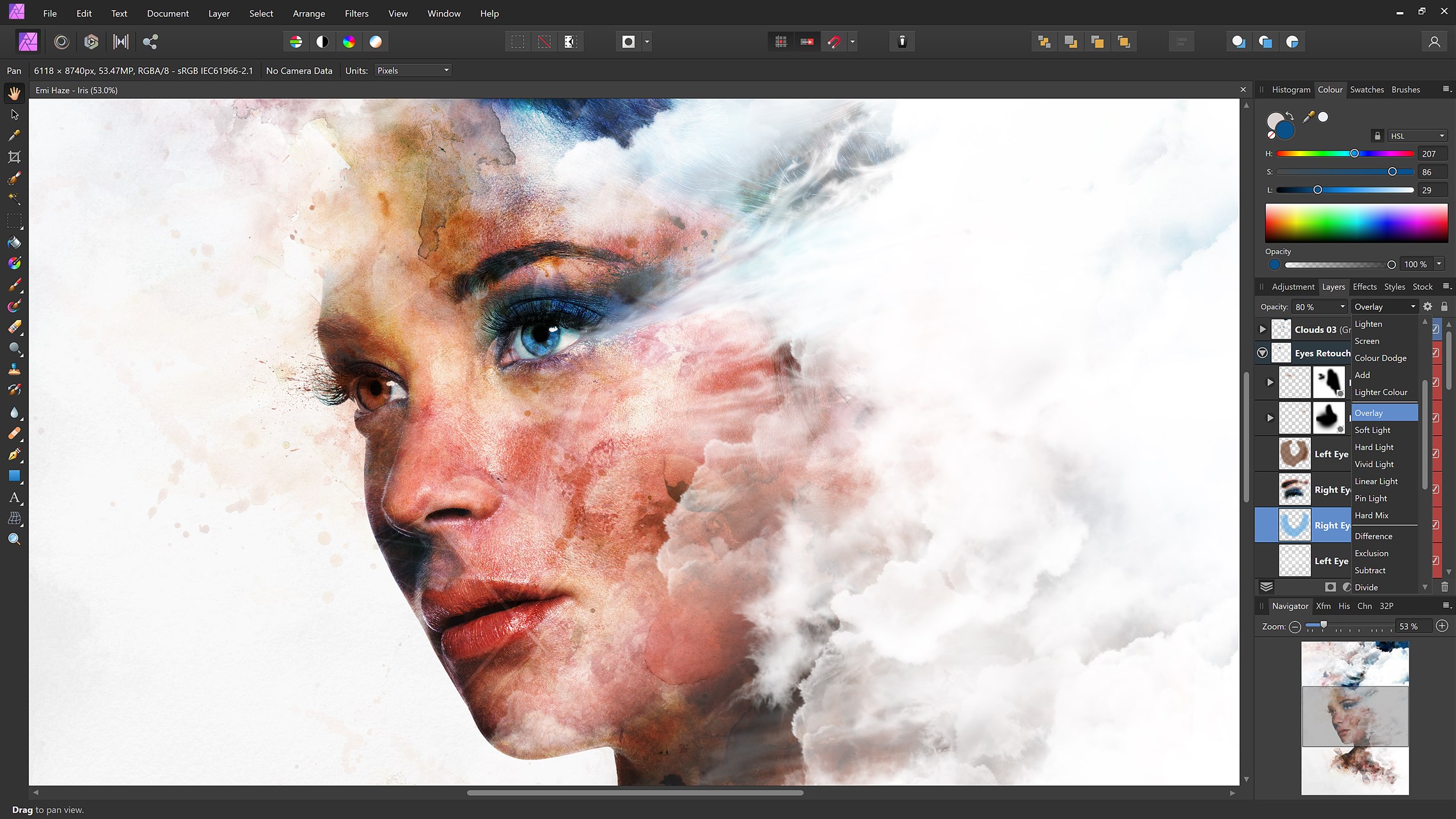
These desktop apps do not support finger gesture shortcuts except for navigation shortcuts. At least palm rejection is perfect.
Leonardo (US $39)
UI for Leonardo is designed for tablets. This app only supports 3 finger undo in addition to navigation gestures.
StylusX (US $20-40)

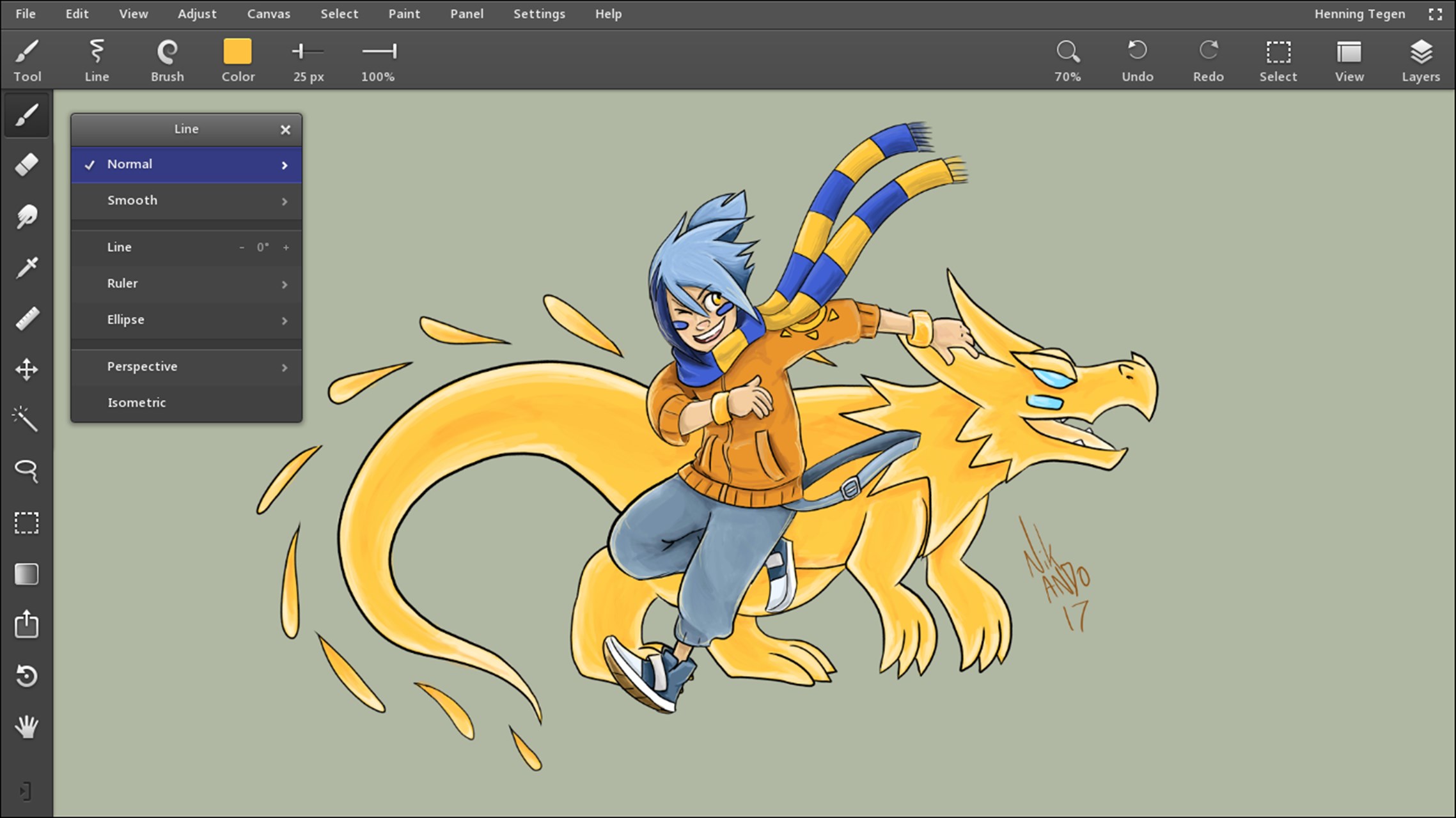
This is the latest drawing app released in September 2025. Even though it's a considered a very new app compared to other apps mentioned on this page, this app actually was designed with touchscreens in mind the finger gesture shortcuts work well. Check out my one-hour long video review if you're interested to learn more about this app.
Tablet Pro Studio (US $40)

Tablet Pro Studio is an utility app that provides you with virtual hotkeys that can be customised with keyboard shortcuts. This app is sold via subscription but there's a lifetime license available too.
This app is very convenient when used with desktop drawing apps with many functions hidden behind long menus because now those functions can be accessed easily with buttons on screen.


Add new comment