
Review: Gaomon PD1561 v2 pen display
Review unit provided by Gaomon
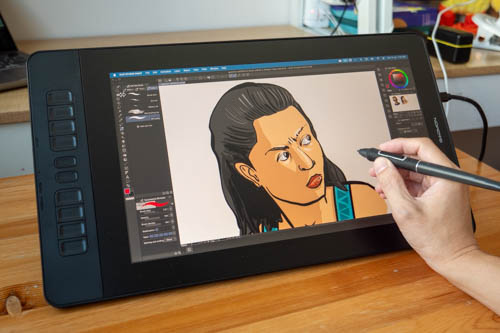
The Gaomon PD1561 V2 is a 15.6-inch FHD pen display designed for digital artists. Price at the time of review is USD 319, and that includes a 1-year warranty and free shipping to selected countries.
This is an update of the Gaomon PD1561 from a few years ago.
The number of pressure levels has increased from 8K to 16K. And more importantly, USB-C video connection is now supported in addition to HDMI.
In case you don't know, a pen display is a monitor that has to be connected to a computer. It's not a standalone tablet as it has no OS and no built-in battery.
Video review
Specifications
- Panel type: IPS Panel
- Size: 15.6 inches
- Resolution: 1920 x 1080 pixels (16:9)
- Color Gamut:100% sRGB, 72% NTSC
- Display Colors: 16.7 million (8-bit)
- Contrast Ratio: 1000:1
- Brightness: 220cd/m²
- Viewing Angle: 89° horizontal / 89° vertical
- Working Area: 34.4 x 19.35 cm
- Response Time: 25 ms
- Accuracy: ±0.5mm (center); ±3mm (corners)
- Resolution: 5080 LPI
- Report Rate: 266 PPS
- Pen: Gaomon G Pen
- Pressure Sensitivity: 16K levels
- Tilt Support: ±60°
- Press Keys: 10 programmable press keys
- Interface: HDMI/DC/USB-C video
- OS Compatibility: Windows 7 or above / macOS 10.12 or above
- VESA: 10 x 10 cm
- Dimensions: 45.24 cm x 25.2 cm x 1.95 cm
- Weight: 1.583kg
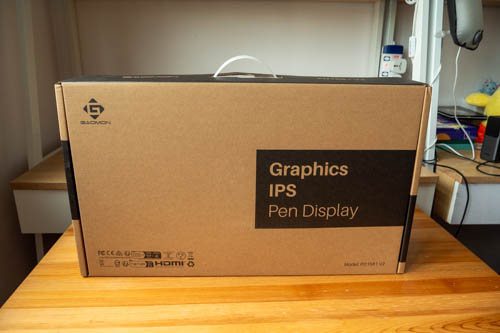
Things included
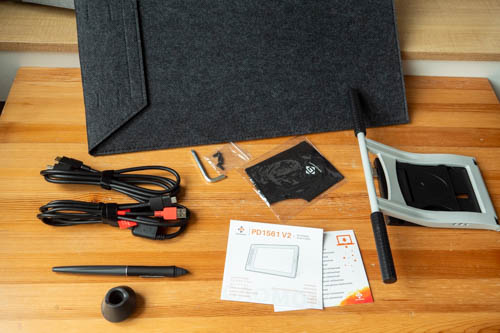
- Stylus - G Pen
- Pen Holder SH01 (includes 8 replacement nibs and 1 nib extractor)
- ST100 Stand
- Cables:
- 1 * HDMI to Mini HDMI cable
- 1 * USB-A+USB-A to Type-C cable
- Drawing Glove
- Protective Case
- 4 * Screws
- L-shaped Hex Key
- Quick Start Guide
- Driver Download Card
- Warranty Card
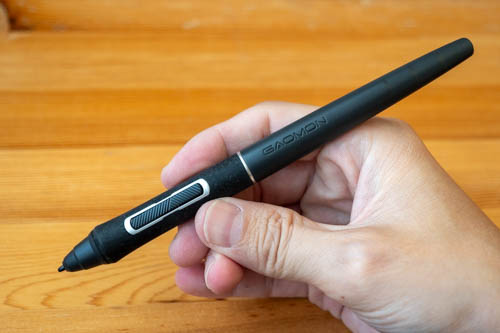
That's the new Gaomon G Pen that supports tilt and 16K levels of pressure sensitivity. The pen is not powered by battery so no charging is required.
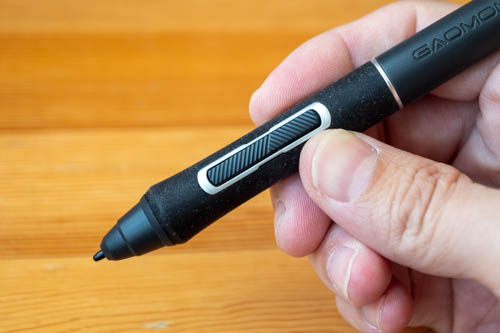
The pen has a silicone grip which attracts dust too easily. The two side buttons have firm clicks and are customisable. There's no eraser button. The pen tip has slight movement when in contact with the drawing surface, but can be considered a firm tip.
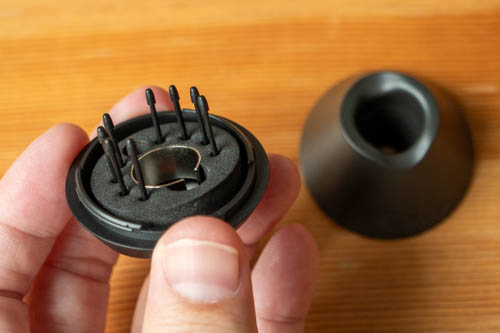
8 replacement pen tips are located in the pen stand. Nib remover is underneath the pen stand.
Design
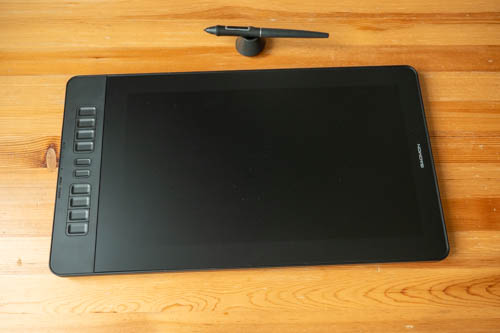
Design of the pen display looks alright. Build quality is solid enough even though the body's made with plastic. This is the same design as the previous model.
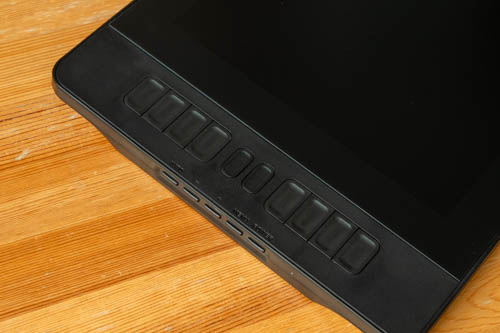
10 customisable hotkeys are located by the side. And beside the hotkeys are some buttons for the OSD and navigation.
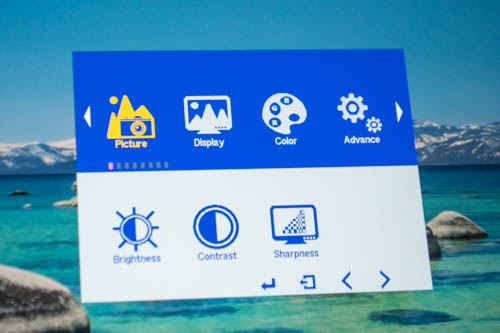
The OSD lets you adjust contrast, brightness, sharpness, RGB, colour temperature, gamma and other display settings. For colour calibration, it's best to set the display mode to native mode. Note that certain display modes will lock brightness, contrast and sharpness.
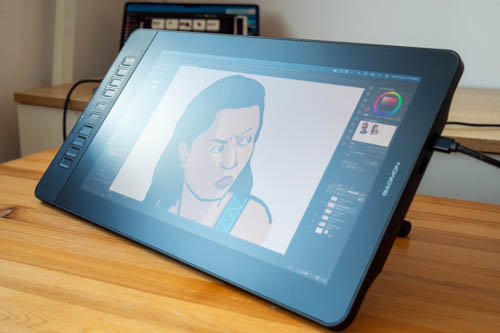
The pen display comes with a screen protector already applied. The screen protector is more on the glossy than matte side but it does provide subtle tactile experience while drawing.
The photo above was taken in a bright room and the anti-glare can be glaring due to the diffused reflection. The diffused reflection will affect contrast and cause the visuals to look washed out. Ideally, you'll want to avoid having reflections on the display, so it's best to use curtains or not have the display face any light source.
So to get the best visual quality, it's best to look at the pen display straight on.
And since it's a screen protector instead of matte glass, the surface may develop scratches with time and usage.
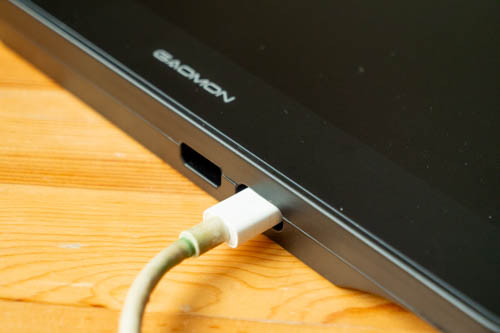
The side ports are for USB-C and mini HDMI. See how the ports are recessed into the body? That means cable connection will be very secure but it also means when you need a replacement cable, you have to buy it from Gaomon.
The hole for the USB-C port looks big and I could use many of my USB-C video cables. But the HDMI video port will need a connector that fits perfectly. In other words, use the default cable provided by Gaomon and hope that it does not break in the future.
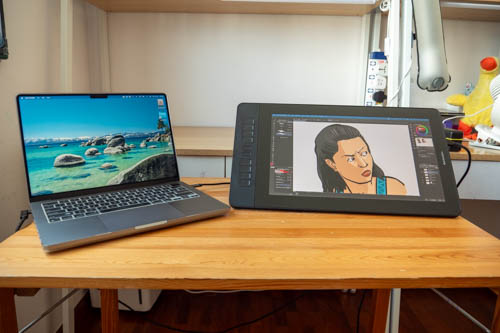
This pen display has been updated to support HDMI and USB-C video connection.
does not support USB-C video connection so you will have to use HDMI. The 3-to-2 cable also has to be connected to the 12W charger.
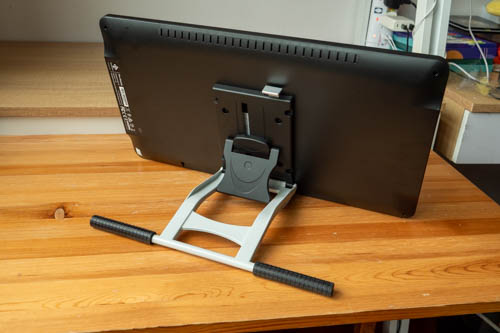
There's a stand installed onto the 10 x 10cm VESA mount. Pull the latch up from behind the display and you can adjust the stand to different angles.
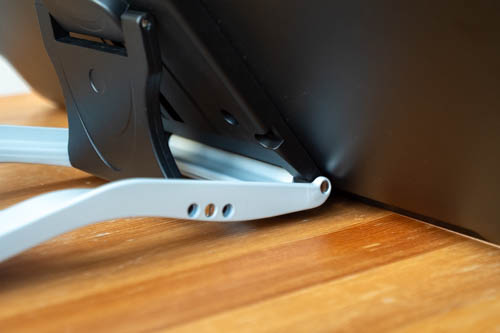
The stand only has rubber on the feet. There's no rubber beneath the pen display. There can be movement with the pen display depending on how you press down on the pen display so I would recommend getting some rubber bumpers to stick to the bottom of the pen display.
And when you have the pen display too low, it would rest on the small section of the metal stand instead of the base of the pen display, and this can cause the pen display to wobble when drawing due to the small base.
Display
The pen display is already colour calibrated at the factory. Company advertises colour support for 99% sRGB, 99% Rec 709, and can produce 16.7 million colours (8-bit).
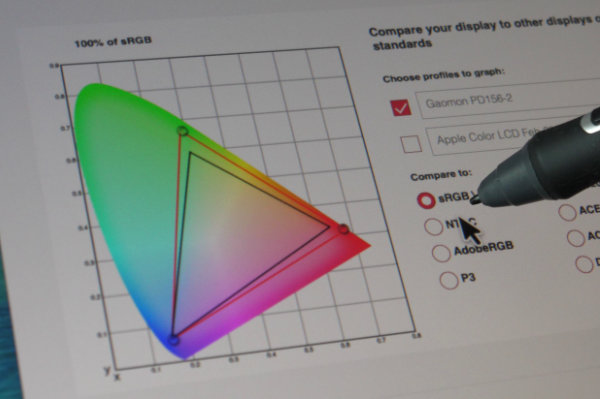
I measured colour support for 100% sRGB, 81% NTSC, 83% AdobeRGB, 94% P3 and a maximum brightness of 153 nits out of the advertised 220 nits. The previous model only has 117 nits brightness so this is a noticeable upgrade.
The display is laminated so there's almost no gap between the line and pen tip. However the glass does have some thickness that contributes to the gap, which is not really an issue after pen calibration.
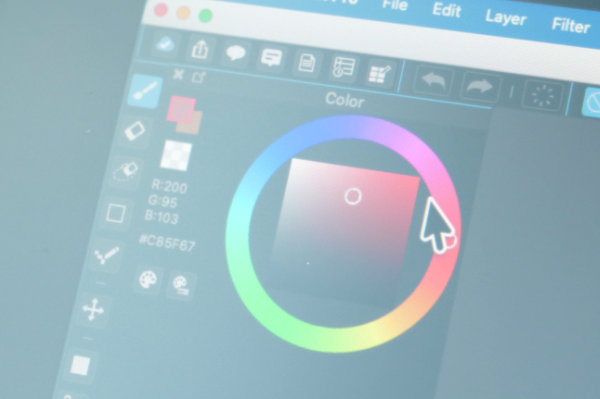
All matte surfaces will introduce some grain, colour noise or anti-glare sparkle and all that is kept to a minimum here.
Resolution is just 1920 x 1080 so there will be slight pixelation. 1080P resolution is still very usable so it's not a big issue.
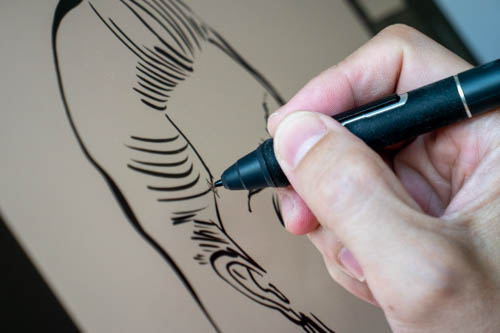
The display is laminated so there's almost no gap between the line and pen tip. However the glass does have some thickness that contributes to the gap, which is not really an issue after pen calibration.
Driver
I've only tested the Mac driver version 16.2.34 (74) and there were no issues. Drivers are also available for Windows and Linux.
The driver is the same as the previous model so I'm reproducing the screenshots and text from my previous review below.


You can create keyboard shortcuts for the hotkeys or choose from the pre-programmed shortcuts.

Mapping can be left as default. If there's cursor misalignment, you can calibrate the display and pen here with Screen Calibration.

The pen side buttons can be customised. I've Switch Display set to one button and it works well.

The Windows driver works fine.
Line tests
Line tests below were created with Medibang Paint Pro.
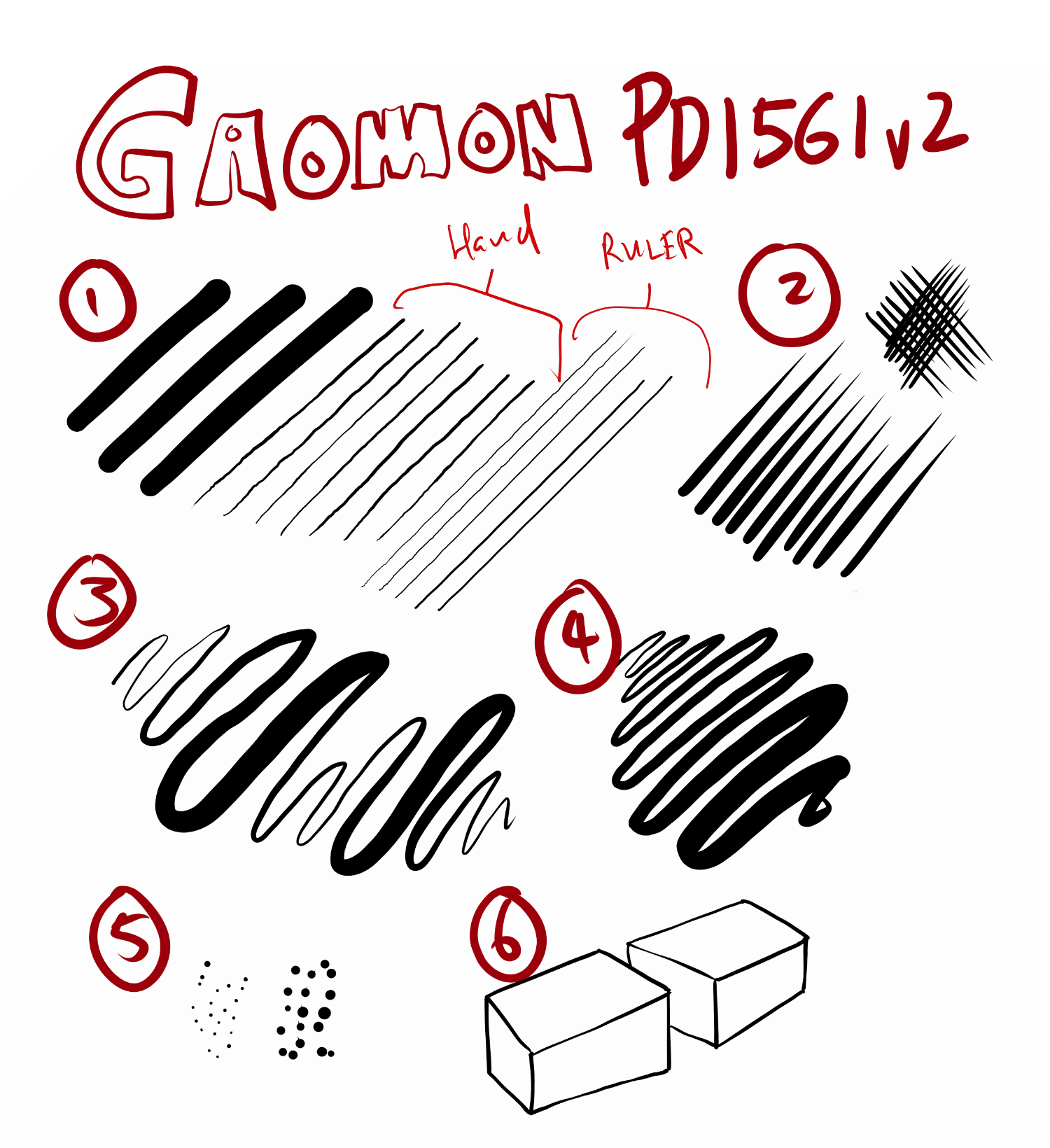
1. Initial activation force is low so thin lines can be drawn easily even with a thick brush selected. There's slight jitter with the diagonal lines.
2. Lines are able to taper quite smoothly and sharply.
3. Line transition from thin to thick and back is smooth. This is also a diagonal line, and there's slight diagonal line wobble and jitter.
4. Line width can be maintained consistently by applying consistent pressure.
5. Dots can be drawn easily. With heavy dots, there's a little tail as I lift the pen. This behaviour may differ depending on the drawing app.
6. I was able to join separate lines without gaps and lines overshooting. Cursor misalignment is not an issue, and cursor tracking is quite accurate even at the edge of the display.
The pen is quite sensitive but there's slight jitter to the diagonal lines. Thankfully the line jitter doesn't really show up when you're actually drawing with the pen.
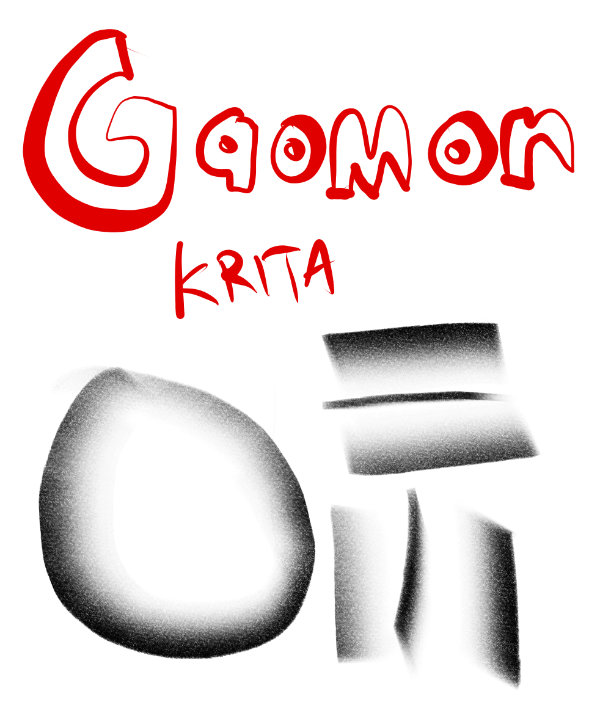
Tilt works well. Cursor is able to follow the direction of the pen.
Drawing experience
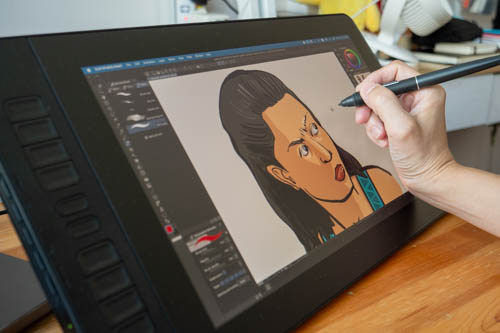
My drawing experience with this pen display is positive. The pen display is about the size of an A4-paper. Even with UI elements such as palettes taking up the space, there's still a good amount of space left over for drawing.
I was able to get the lines to come out just the way I expect them to. Line tests sometimes may not be representive of the actual drawing experience.
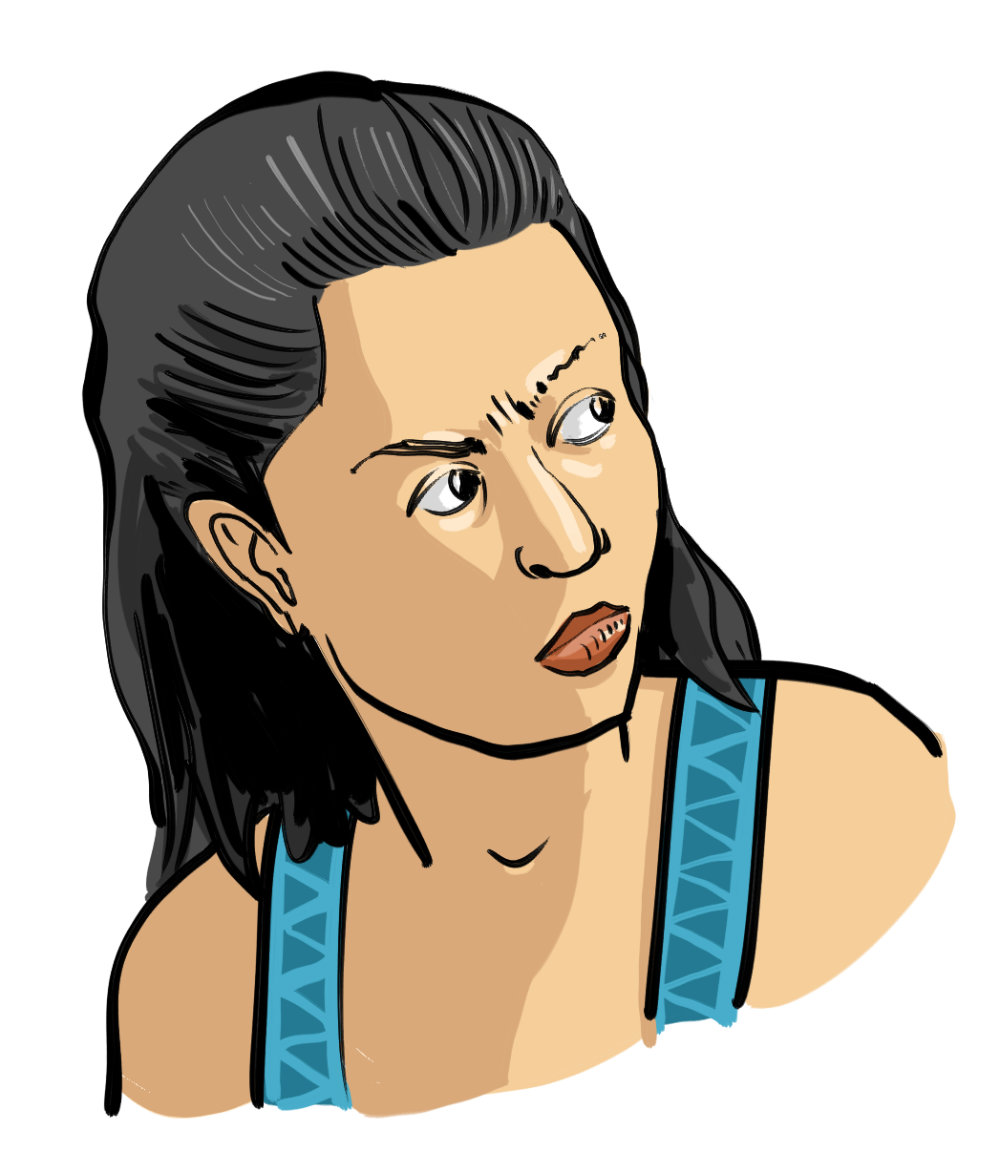
This was drawn with Clip Studio Paint and I did not experience any issues with drawing, software or workflow.

As the pen has good support for pressure, you can choose a thick brush and just use that for the whole drawing, changin the thickness by varying the pressure instead of changing the line width with settings.
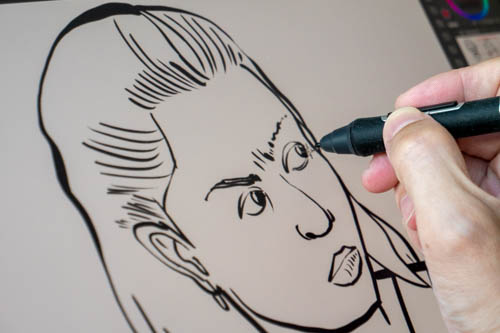
I would say the pen performance is good for creating professional art even of the line tests suggests otherwise. That's why it's important to test the pen more thorough and across different apps, because different apps may sometimes have different pen performance.
The pen display does not generate much heat.
Conclusion
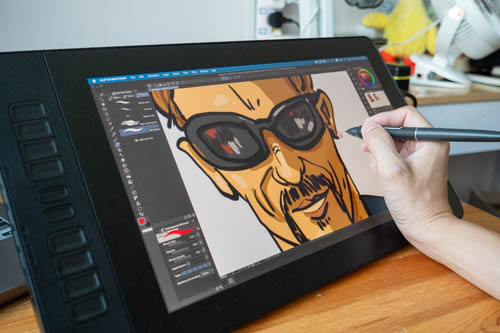
The pen performance is excellent. Display has good colour support (measured 100% sRGB) but visual quality is affected by the matte screen protector can look washed out in a bright environment due to the anti-glare. The matte screen protector is also quite susceptible to scratches, or maybe it's just me who's too careless. Measured brightness is a low 117 nits which means this display is best used with curtains in your room.
Pros and cons at a glance
+ Good size to work with for drawing
+ 10 customisable hotkeys
+ Has drivers for Windows, MacOS, Linux
+ Good pen performance
+ Stand included
+ Has USB-C video support
+ There's 10 x 10cm VESA mount
+ 100% sRGB colour support measured
- Matte screen protector can be scratched with wear and tear
- No rubber feet beneath the pen display
- Diffused reflections affects visual quality of the display
- No rubber padding beneath pen display
Availability
The Gaomon PD1561 V2 pen display is available from Gaomon online store and Amazon USA.
By the way, if you have intention to buy this pen display, considering using the affiliate links that I have for you above. I get to make some commission for each sale but at not extra cost to you. Your support helps me put out more reviews like the one you've just read.


Add new comment